
Intro and Outro
Intro is the welcome page, shown before the first page of the form. Outro is the thank-you page, shown after the client submits the form, or a redirect to a web address instead. You set them up at the top and bottom of the structure in the HTML Template editor.
Both pages belong to the HTML form. A PDF template without an HTML form has no welcome page.
Intro (welcome page)
Section titled “Intro (welcome page)”The welcome page shows the project’s logo, a title, a description and a button that opens the form.
- Click Intro at the top of the structure. Its settings open in the side panel.
- Fill in the settings below. Title and Description use the same text editor as a Paragraph, without placeholders.
- To close the settings, click Intro again, or click Close.
| Setting | What to enter |
|---|---|
| Hide welcome screen | Turn it on to skip the welcome page, so that the form link opens the first page directly. The other settings are hidden. |
| Title | The title of the welcome page. |
| Description | The text under the title. |
| Start button text | The text of the button that opens the first page. |
If you leave them empty, the welcome page shows a default title, a default text with the template name, and a Start button. When the project has no logo, the Cellosign logo is shown.
Tip: format the title as Heading 1 in the editor’s block format list. Screen readers then announce it as the heading of the page.
Outro (thank-you page)
Section titled “Outro (thank-you page)”The thank-you page shows the project’s logo, a title, a description and the transaction’s token. It can also have a button that opens a web address, for example your website.
- Click Outro at the bottom of the structure. Its settings open in the side panel.
- Fill in the settings below.
- To close the settings, click Outro again, or click Close.
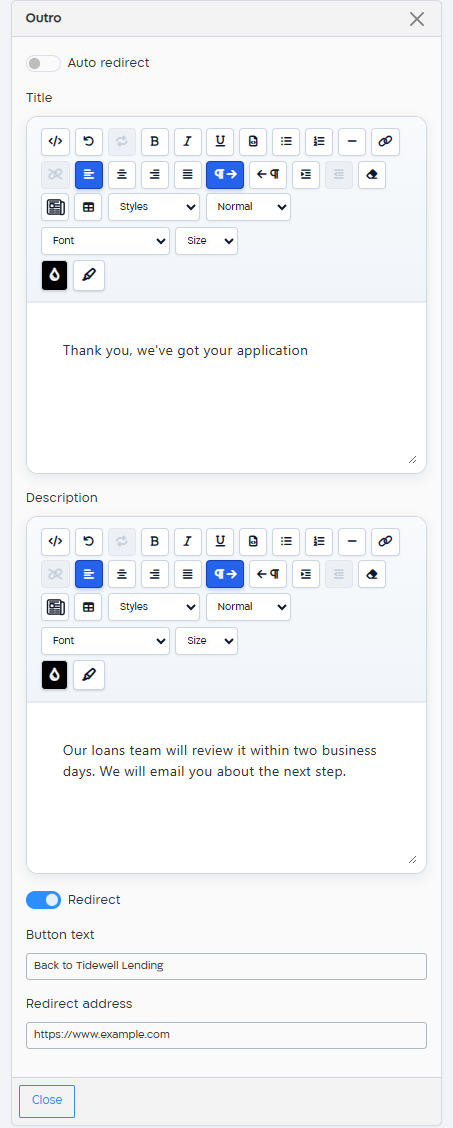
| Setting | What to enter |
|---|---|
| Auto redirect | Turn it on to send the client to a web address after they submit the form, instead of showing the thank-you page. When it’s on, only Redirect field and Redirect address are shown. See Send the client to another address. |
| Title | The title of the thank-you page. If you leave it empty, a default title is shown, for example “Session Complete” in English. |
| Description | The text under the title. |
| Redirect | Turn it on to add a button that opens a web address. |
| Button text | Shown when Redirect is on. The text of the button. The default is “Close”. |
| Redirect address | Shown when Redirect is on. The address the button opens. The button is shown only when you enter an address. |
Send the client to another address
Section titled “Send the client to another address”With Auto redirect on, the client goes straight to a web address after the form is submitted. Set one of these:
| Setting | What to enter |
|---|---|
| Redirect field | A Text field of the form that holds the address, for example a field filled through the API when the transaction is created. Use it when the address changes from one transaction to another. The list shows the template’s Text fields. |
| Redirect address | A fixed address, for example https://www.example.com/thank-you. |
Enter the full address, starting with https://. If you set both, Redirect address is used. Redirect field is used only when Redirect address is empty and the field has a value.