
Reading order for screen readers
When the PDF of a PDF template is tagged (an accessible PDF), Cellosign adds the signer’s values to the PDF’s tags. Tags are the structure that screen readers follow. On the Accessibility tab of a field, you choose the label in the PDF that the field’s value is read after. A screen reader then reads each value right after its label, for example “First name, Dana”, instead of reading all the labels first and all the values at the end.
The form that the signer fills in doesn’t change. Only the signed PDF does.
Before you start
Section titled “Before you start”- A PDF template with a tagged PDF. The reading order is set in the PDF Template editor, also in hybrid templates. To get a tagged PDF, export the document with accessibility tags (for example, from Word with document structure tags for accessibility) or add tags in Adobe Acrobat. If the PDF isn’t tagged, the Accessibility tab isn’t shown, and you can’t set a reading order.
- Your organization’s plan. The Accessibility tab and the reading-order banner are shown only when accessible PDFs with reading order are included in your organization’s plan. They are part of the Accessible PDF feature. To turn it on for your account, contact your Cellosign account manager.
When you open the template, Cellosign reads the text of the PDF and finds the labels. This takes a moment (“Analyzing the PDF structure…”). If it fails, the tab shows “The PDF structure could not be analyzed.” Click Retry.
How the values are placed
Section titled “How the values are placed”For each field, Cellosign places the value in the PDF’s tags in one of these ways:
| The field is | The value is placed |
|---|---|
| Bound to a label | Right after the label, or right before it if you chose Before. |
| Automatic, or not set | By the field’s position on the page, next to the text near it. |
The automatic placement works well when the label comes right before the field on the same line. It doesn’t work well when, for example, the labels are printed under the fields, or a row of labels is above a row of fields: the screen reader reads the whole row of labels, and then the whole row of values. Bind these fields to their labels.
A bound Signature field gets its signature field next to its label in the PDF, and it’s signed there.
Check the reading order of a template
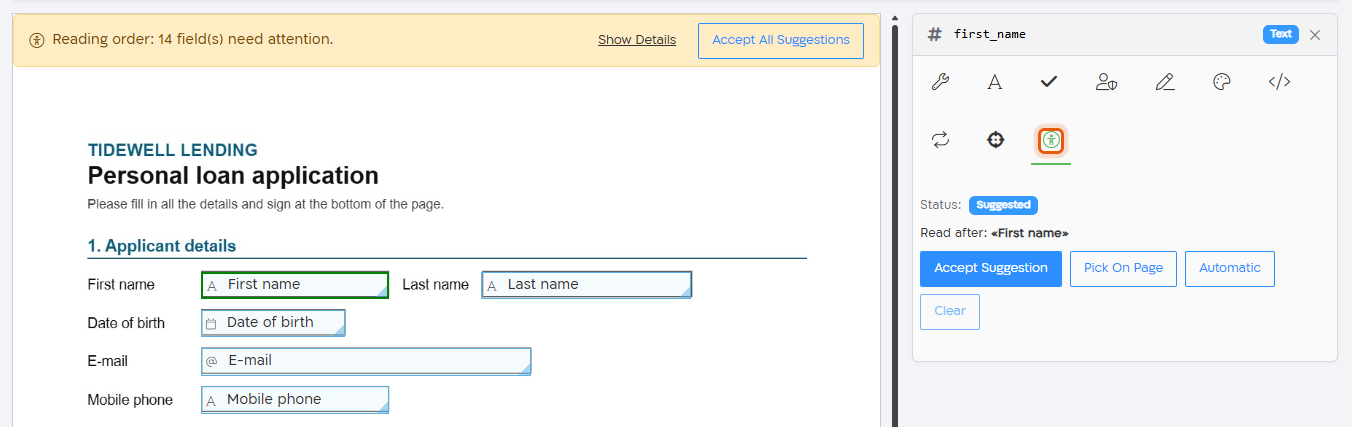
Section titled “Check the reading order of a template”When the template has fields that need attention, a yellow banner above the PDF shows how many: “Reading order: 3 field(s) need attention.” When all fields are set, the banner is green: “Reading order: all fields are configured.”
A field needs attention when:
- it has no binding and isn’t set to Automatic: “Reading order not configured”;
- its binding was made on a PDF that was replaced: “Reading order binding is stale — the PDF was replaced”. See After you change the PDF.
A radio button counts as set when its default is set, or when each of its options is bound. See Radio buttons.
To see the fields, click Show Details in the banner. Click a field ID in the list to select the field, and then open its Accessibility tab.
The warnings never block saving. If fields still need attention when you save, the template is saved, and a message tells you how many fields have no binding or a stale one.
Bind a field to its label
Section titled “Bind a field to its label”- Click the field on the PDF.
- In the field editor, open the Accessibility tab (the icon of a person in a circle).
- Check the label after Read after. While the status is Suggested, this is the text that Cellosign suggests as the field’s label.
- Do one of the following:
- If it’s the field’s label, click Accept Suggestion.
- If it isn’t, click Pick On Page, and then click the field’s label on the page. See Pick the label on the page.
- The status changes to Bound. If needed, choose Before or After.
- Save the template.
The Accessibility tab is shown for all field types that you can place on a PDF, except Button and Payment. When you select another field, the field editor stays on the Accessibility tab, so you can go through the fields one by one.
Check every suggestion before you accept it. A suggestion is the nearest text, and it isn’t always the label: for check boxes and radio options, and for labels printed under the field, it can be a heading, the line above, or the text of the next option.
Pick the label on the page
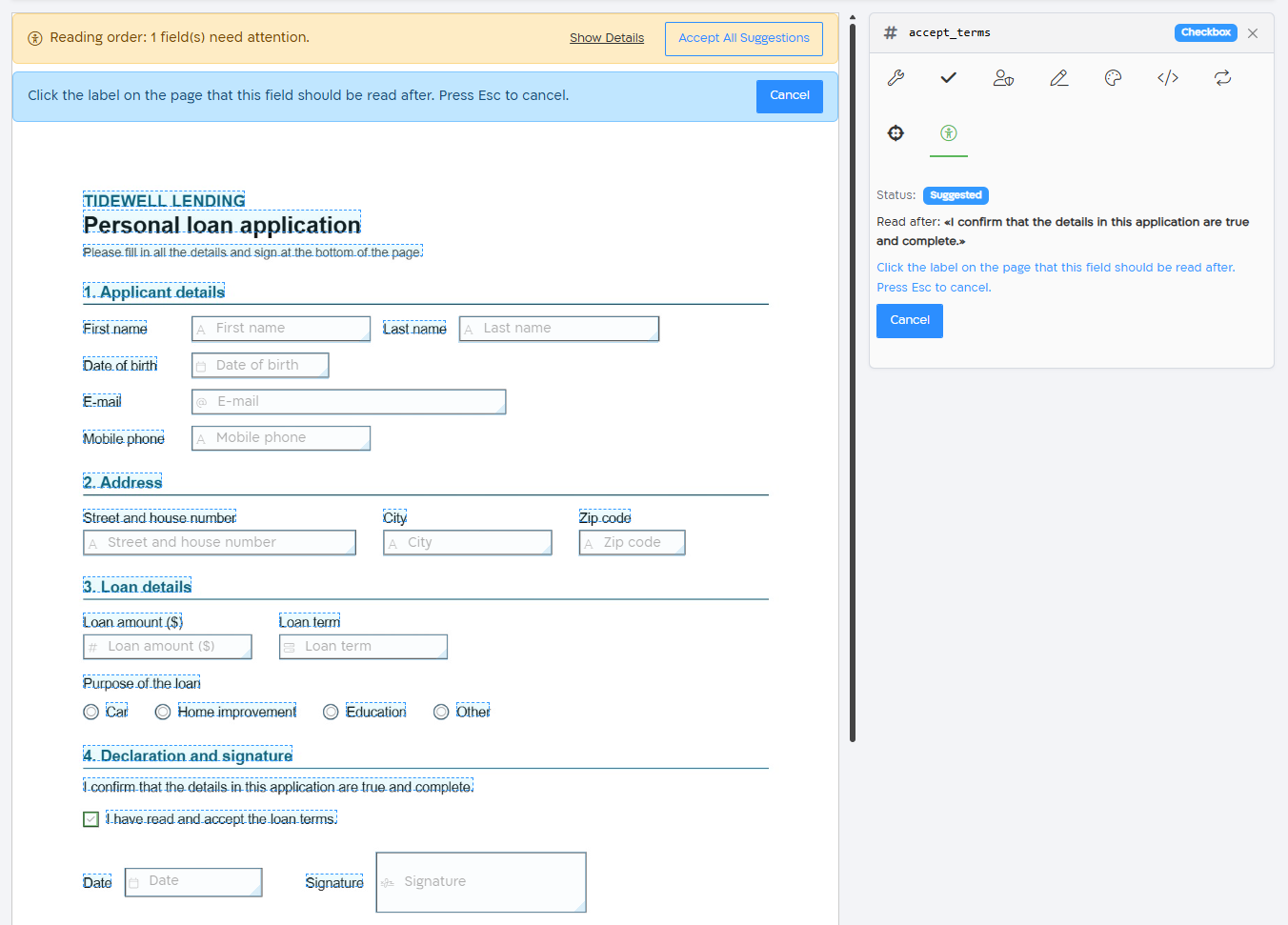
Section titled “Pick the label on the page”After you click Pick On Page, a dashed box is shown around each text on the page, and a hint is shown above the PDF: “Click the label on the page that this field should be read after. Press Esc to cancel.”
- Point to a box to see its text. Click the box of the field’s label to bind the field to it.
- To stop without changing anything, press Esc or click Cancel. Leaving the tab or closing the field editor also stops it.
While you pick, you can’t select or move fields on the PDF.
Read the value before or after the label
Section titled “Read the value before or after the label”When the field is bound, choose where its value is read:
- After (the default): the label, then the value. Use it for fields whose label comes before them, such as “First name” and a text box.
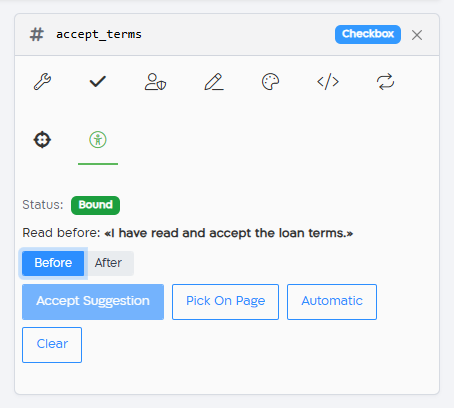
- Before: the value, then the label. Use it for check boxes and radio options, whose text comes after the box: the screen reader reads the mark, and then the text of the option.
The line above the buttons shows the result: Read after: or Read before: and the label.
Automatic and Clear
Section titled “Automatic and Clear”- Automatic: the value is placed by its position on the page, without a label. Choose it for a field that has no label on the PDF, or when the automatic order is already right. The field no longer counts as needing attention.
- Clear: removes the binding or the Automatic setting. The field needs attention again.
Statuses
Section titled “Statuses”| Status | What it means |
|---|---|
| Suggested | No binding yet. Cellosign suggests the label shown after Read after. The suggestion isn’t used until you accept it. |
| Not configured | No binding yet, and Cellosign found no text near the field. Use Pick On Page or Automatic. |
| Bound | The field is bound to the label shown. |
| Automatic | The value is placed by its position on the page. |
| Stale | The binding was made on a PDF that was replaced. It isn’t used. Bind the field again. |
Radio buttons
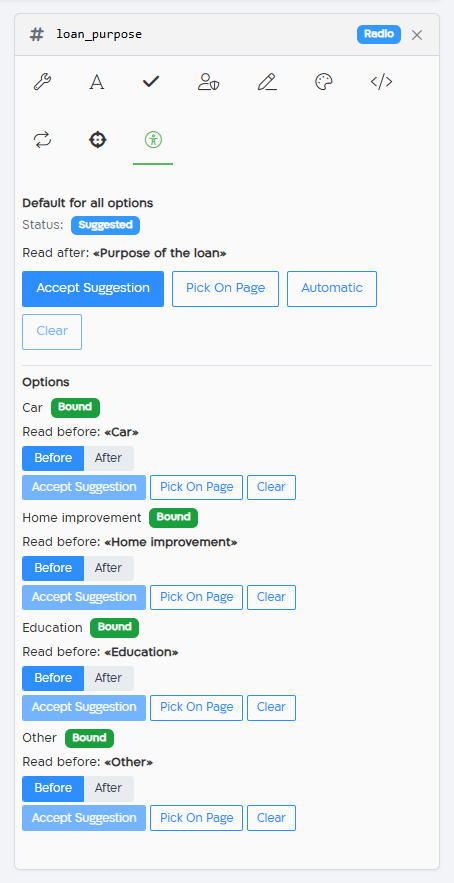
Section titled “Radio buttons”On a PDF, each option of a radio button is a separate circle, and each option has its own text. The Accessibility tab of a radio button has two parts:
- Default for all options: a label for the whole field, for example the question. It’s used for options that have no binding of their own.
- Options: each option that is placed on the PDF, with its own status and its own Accept Suggestion, Pick On Page, Clear and Before / After.
Bind each option to its own text, and choose Before. The screen reader then reads the mark together with the option that the signer selected.
- Click one of the radio circles on the PDF, and open the Accessibility tab.
- Under Options, click Pick On Page for the first option, and click the text of that option on the page.
- Click Before.
- Repeat for each option.
An option’s status is Bound, Suggested, Stale, Not set, or Uses field default when it has no binding of its own and the default applies.
Accept all suggestions
Section titled “Accept all suggestions”Accept All Suggestions in the banner accepts the suggestion of every field that has no binding yet, and of the options of radio buttons that have no default. Fields that you already bound or set to Automatic aren’t changed. A message shows how many suggestions were accepted.
Accept all doesn’t show you the labels before it binds them. After you use it, check the fields whose label isn’t right next to them, especially check boxes, radio options and fields with the label under them, and fix them with Pick On Page.
After you change the PDF
Section titled “After you change the PDF”When you change the PDF of the template, the labels are on a new PDF. After the change, check the banner. Fields whose binding was made on the old PDF are marked Stale and aren’t used: in new PDFs, their values are placed automatically until you bind them again. Open each stale field, and click Accept Suggestion or Pick On Page.
If you upload the same PDF file again, the bindings are valid again.
Other changes:
- Moving a field doesn’t change its binding. If you move a field to another label, bind it again.
- Cloning a field doesn’t copy its binding. Bind the copy.
- Exporting and importing a template keeps the bindings.
What the signed PDF contains
Section titled “What the signed PDF contains”- The value of each bound field is tagged right after (or before) its label, so a screen reader that reads the document from the top reads the value with its label.
- If Cellosign can’t find the label in the PDF anymore, for example because the PDF file was changed outside Manager Studio, the value is placed automatically. The PDF is always created.
- A new session uses the template version it was created with. To see a change in the reading order, start a new process.
- Untagged PDFs aren’t changed: the values are printed as before, without a reading order.
To check the result, open the signed PDF with a screen reader, for example NVDA with Adobe Acrobat Reader, or look at the order of the tags in Adobe Acrobat.