
Integrations
The Integrations tab connects the template to people outside Cellosign and to your systems. To open it, click the Integrations tab (the diagram icon) in the template editor.
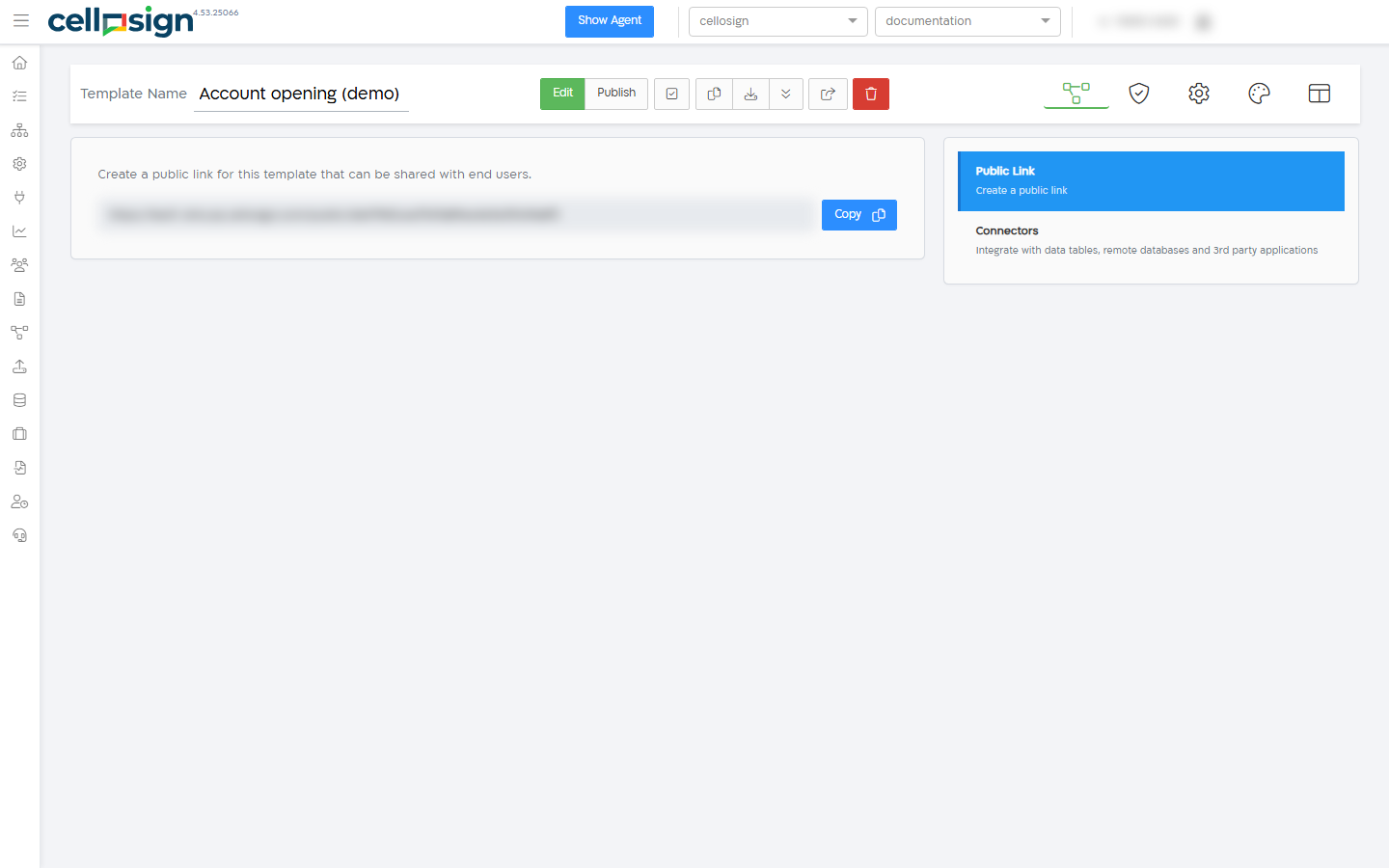
Select a section on the right of the tab:
| Section | What it’s for |
|---|---|
| Public Link | A link that anyone can open to start a new transaction of the template, for example from your website. This section opens first. |
| Connectors | Connects the form to data tables, webhooks, Salesforce, file storage and Google Maps, at different stages of the transaction. |
The settings are saved with the template. Click Save in the editor header to keep your changes.
Connector kinds
Section titled “Connector kinds”| Source | What it does | Page |
|---|---|---|
| Data Table | Looks up a row in a project data table and fills form fields with its values. | Data Table connector |
| Webhook | Links one of the project’s webhooks to the template, and can send field values to a remote service and fill fields from its answer. | Webhook connector |
| Salesforce | Reads, creates, updates and deletes Salesforce records, and uploads files to them. | Salesforce connector |
| File Storage | Saves the files of the submitted form to one of the project’s storage integrations. | Connectors |
| Maps | Turns on Google Maps in the form’s Location fields. | Maps connector |
The integrations themselves are set up in the project. See Integrations and Data tables.