
Create and import templates
You can create a new HTML template or PDF template, or import a template from a file that was exported from Cellosign. To copy a template in the same project, open it and click Clone template. See Clone a template.
Create a template
Section titled “Create a template”- In Templates, click Create Template.
- In Template Name, enter a name. See Template name.
- Select the type:
- HTML Template: a form that you build in the editor.
- From PDF file: a PDF template. Drag the PDF file to Upload PDF File, or click it to select the file.
- Click Save.
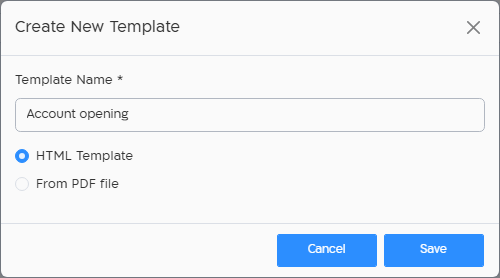
Save is available after you enter a name and, for a PDF template, select a file. The template is created in Edit status and opens in the template editor: on the HTML Template editor tab for an HTML template, or on the PDF Template editor tab for a PDF template.
For the difference between the types, see Template types. To make a hybrid template, create a PDF template first and then add an HTML form to it. See Hybrid templates.
Template name
Section titled “Template name”- Up to 150 characters.
- Letters, digits, spaces and these characters:
, - _ : + ( ) = @ ? * % ; | \ . $ – & !, and the Hebrew geresh (׳) and gershayim (״). - Other characters, such as quotation marks, aren’t allowed.
The same rules apply when you rename the template in the editor.
PDF file
Section titled “PDF file”- The file must be a
.pdffile, up to 5 MB by default. If the file is too big, a message shows the maximum size. - When the page-size check is included in your organization’s plan, all the pages of the PDF must be the same size. If they aren’t, the template isn’t created, and a message lists the pages to fix.
To replace the PDF of a PDF template later, use Change PDF background in the editor. See Change the PDF.
Import a template from a file
Section titled “Import a template from a file”Import a template to move it from one Cellosign environment to another, for example from a test server to production. First export the template in the editor of the source environment. See Export a template.
You can import two types of files:
| File | How you get it | What it includes |
|---|---|---|
.json |
Export template in the editor toolbar | The template, with its PDF and images. |
.cellosign |
Export recovery in the editor toolbar | The template and the objects it uses: the data sources (dictionaries) of its fields, its integrations (connectors, payment and CIV), the workflow it is bound to, and the templates in its templates sequence with the objects they use. |
Imported templates are created in Edit status. Publish them when they are ready.
Import a .json file
Section titled “Import a .json file”- In Templates, click Upload Template From File.
- Drag the
.jsonfile to the dialog, or click to select it.
The import starts as soon as you select the file. When it finishes, the template opens in the editor.
The imported template keeps the ID it had in the source environment. If a template with this ID already exists in the environment, the import fails with “Template with this ID already exists”. To make a copy of a template in the same environment, use Clone template instead.
A template with CIV fields can be imported only by project managers and organization managers, and only when CIV is included in your organization’s plan.
Import a .cellosign file
Section titled “Import a .cellosign file”Importing a .cellosign file requires that backup is included in your organization’s plan.
-
In Templates, click Upload Template From File.
-
Drag the
.cellosignfile to the dialog, or click to select it. -
Under Choose how to handle existing objects, select an option:
Option What happens to objects in the file that already exist in the project Use existing objects They are kept as they are. Only the objects that don’t exist yet are created. This is the default. Override existing objects They are replaced with the versions in the file. Before a template is replaced, Cellosign saves a copy of it named “Copy of” followed by the template name. -
Click Upload.
When the import finishes, the template opens in the editor. If the template already existed and you selected Use existing objects, the existing template opens unchanged.
If the file has a template that exists in another project, nothing is imported and an error is shown.
Import messages
Section titled “Import messages”| Message | What it means |
|---|---|
| Template with this ID already exists | A template with the same ID already exists in the environment (.json file). |
| No template found in the uploaded file | The .cellosign file has no template. |
| Upload timed out, please try again | The import of a .cellosign file took longer than the dialog waits. The import may still finish: refresh the Templates screen and check the list before you try again. |
| Unknown error occurred, please contact admin | The file couldn’t be imported. |