
MFA settings
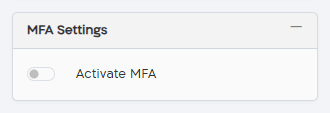
The MFA Settings card turns on two-step verification (MFA) for the project’s users. With MFA, a user who signs in enters their password and then a code that Cellosign sends to their phone (SMS) or email. Even if someone learns a user’s password, they can’t sign in without the code.
We advise you to turn on MFA when the project holds personal or sensitive data, and it is often required by security standards such as ISO 27001.
The card is shown when MFA is included in your organization’s plan, to users with the Project manager or Organization manager role. To add MFA to your plan, contact your Cellosign account team or support.
Turn on MFA
Section titled “Turn on MFA”In the MFA Settings card, turn on Activate MFA. The change is saved at once, and the message “MFA settings have been updated” appears. There is no Save button.
What users see
Section titled “What users see”- A user with a role in the project who hasn’t set up MFA is asked to set it up at the next sign-in: they choose Phone (SMS) or Email, enter the phone number or email address, and enter the code they receive.
- From then on, every sign-in asks for a code. The code is valid for 5 minutes.
To change the phone number or email address, a user opens their profile and clicks Configure MFA.
Also note:
- MFA applies to the user’s sign-in, so it covers all the user’s projects, not only this one.
- MFA applies to users who sign in with a Cellosign password. Users who sign in through SSO use the verification of their identity provider.
- Turning off Activate MFA doesn’t stop asking for a code from users who already set up MFA.