
Template editor
The template editor opens when you create a template, or when you click a template on the Templates screen. At the top of the editor is the toolbar: the template name and status on the left, the actions in the middle, and the tabs on the right. The actions and the tabs are icons: point to an icon to see its name.
The template ID is shown in the browser’s address bar, after /template/.
Toolbar
Section titled “Toolbar”
| Button | Icon | What it does |
|---|---|---|
| Template Name | The name of the template. To rename the template, edit the name and save. See Template name. | |
| Edit / Publish | Sets the template status and saves the template. The current status is highlighted. See Change the status. | |
| Save | Check box | Checks the template and saves it. See Save the template. |
| Clone template | Two pages | Creates a copy of the template and opens it. See Clone a template. |
| Export template | Download arrow | Downloads the template as a .json file. See Export a template. |
| Export recovery | Double arrow down | Downloads the template and the objects it uses as a .cellosign file. Shown only when backup is included in your organization’s plan. |
| Change PDF background | Circular arrow | Replaces the PDF of the template. Shown on the PDF Template editor tab. See Change or erase the PDF. |
| Erase PDF background | Eraser | Removes the PDF and turns a hybrid template into an HTML template. Shown on the PDF Template editor tab of a hybrid template. |
| Show Agent | Arrow out of a box | Opens the template in the agent screen, in a new tab. Shown only when the agent screen is included in your organization’s plan. See Show Agent. |
| Delete template | Trash can (red) | Deletes the template. See Delete a template. |
Save the template
Section titled “Save the template”Your changes are kept in the browser until you save them. Click Save, or click Edit or Publish.
The editor doesn’t warn you about unsaved changes. If you leave the editor, reload the page or close the browser tab before you save, your changes are lost.
When you save, Cellosign checks the template first. Errors stop the save; warnings are shown, and the template is saved. See Issues. When the template is saved, the message “Template saved successfully” appears.
If the template can’t be saved, for example because its name has characters that aren’t allowed, the message “Failed to save template” appears.
Clone template, Export template, Export recovery and Show Agent use the last saved version of the template. Save your changes before you use them.
Change the status
Section titled “Change the status”Click Publish to publish the template, or Edit to set it back to Edit status. The template is saved with the new status, together with any other changes you made. If the save fails, the status doesn’t change.
For what each status means, see Template status.
Clone a template
Section titled “Clone a template”Click Clone template. Cellosign creates a copy named “Copy of” followed by the template name, in Edit status, and opens it. The copy has a new template ID.
Unsaved changes in the original template aren’t copied, and they are lost when the copy opens.
A template with CIV fields can be cloned only by project managers and organization managers, and only when CIV is included in your organization’s plan.
Export a template
Section titled “Export a template”| Button | What you get |
|---|---|
| Export template | A .json file named <project name>.<template ID>.json, with the template, its PDF and its images. |
| Export recovery | A .cellosign file with the template and the objects it uses: the data sources (dictionaries) of its fields, its integrations, the workflow it is bound to, and the templates in its templates sequence. Cellosign prepares the file and downloads it when it is ready; the message “Template backup downloaded” appears. |
Use these files to import the template into another environment. See Import a template from a file.
Change or erase the PDF
Section titled “Change or erase the PDF”These buttons are shown on the PDF Template editor tab.
- Change PDF background replaces the PDF right away, and then the editor reloads the template. Save your changes before you use it: unsaved changes are lost when the template reloads. See Change the PDF.
- Erase PDF background removes the PDF of a hybrid template and keeps its HTML form. The template becomes an HTML template, the PDF Template editor tab disappears, and the editor switches to the HTML Template editor tab. Save the template to keep the change. See Erase the PDF.
Show Agent
Section titled “Show Agent”Show Agent opens the agent screen with this template selected, in a new tab. The button is unavailable when the template has more than 10 roles, has a data model, or has a role that requires end-user SSO.
Delete a template
Section titled “Delete a template”- Click Delete template.
- Click Delete to confirm.
The Templates screen opens. To keep a copy of the template, export it before you delete it.
The tabs are shown in this order:
| Tab | Icon | Shown | What’s on it |
|---|---|---|---|
| Issues | Warning triangle | When the template has issues | The problems found in the template. See Issues. |
| Integrations | Diagram | Always | The public link and the connectors. See Integrations. |
| Information Security | Shield | Always | Expiration, encryption and regulation settings, and the Safe. See Information Security. |
| Configuration | Gear | Always | The template’s settings. See Configuration. |
| Design | Palette | Always | The look of the form. See Design. |
| HTML Template editor | Columns | Always | The HTML form. For a PDF template without an HTML form, the tab shows Create HTML Template. See HTML Template editor. |
| PDF Template editor | PDF file | PDF and hybrid templates | The PDF pages and the fields on them. See PDF Template editor. |
The editor opens on the PDF Template editor tab for PDF and hybrid templates, and on the HTML Template editor tab for HTML templates.
The side panel
Section titled “The side panel”On the HTML Template editor and PDF Template editor tabs, the panel on the right shows:
- the field palette, when nothing is selected. Its tabs are Add Controller, In Template, Control Group and, on the HTML Template editor tab only, Saved Objects. See Fields.
- the settings of the field you click. See Field settings.
- on the HTML Template editor tab, the settings of the page, section or row you click, or of Intro and Outro. See HTML Template editor.
Close the settings to return to the palette.
Large templates
Section titled “Large templates”When an HTML template has more than 500 fields and more than one page, the editor turns on Edit HTML templates by page (on the Configuration tab, under Basic). The HTML Template editor tab then shows one page at a time. The setting is kept when you save the template.
Issues
Section titled “Issues”Cellosign checks the template while you work: when you open it, and shortly after each change. When it finds problems, the Issues tab appears. Its badge shows the number of issues: red when there is at least one error, amber when there are only warnings. The tab disappears when the last issue is fixed.
| Level | What it means |
|---|---|
| Error | The template can’t be saved until you fix it. |
| Warning | The template can be saved, but the form may not work as expected. |
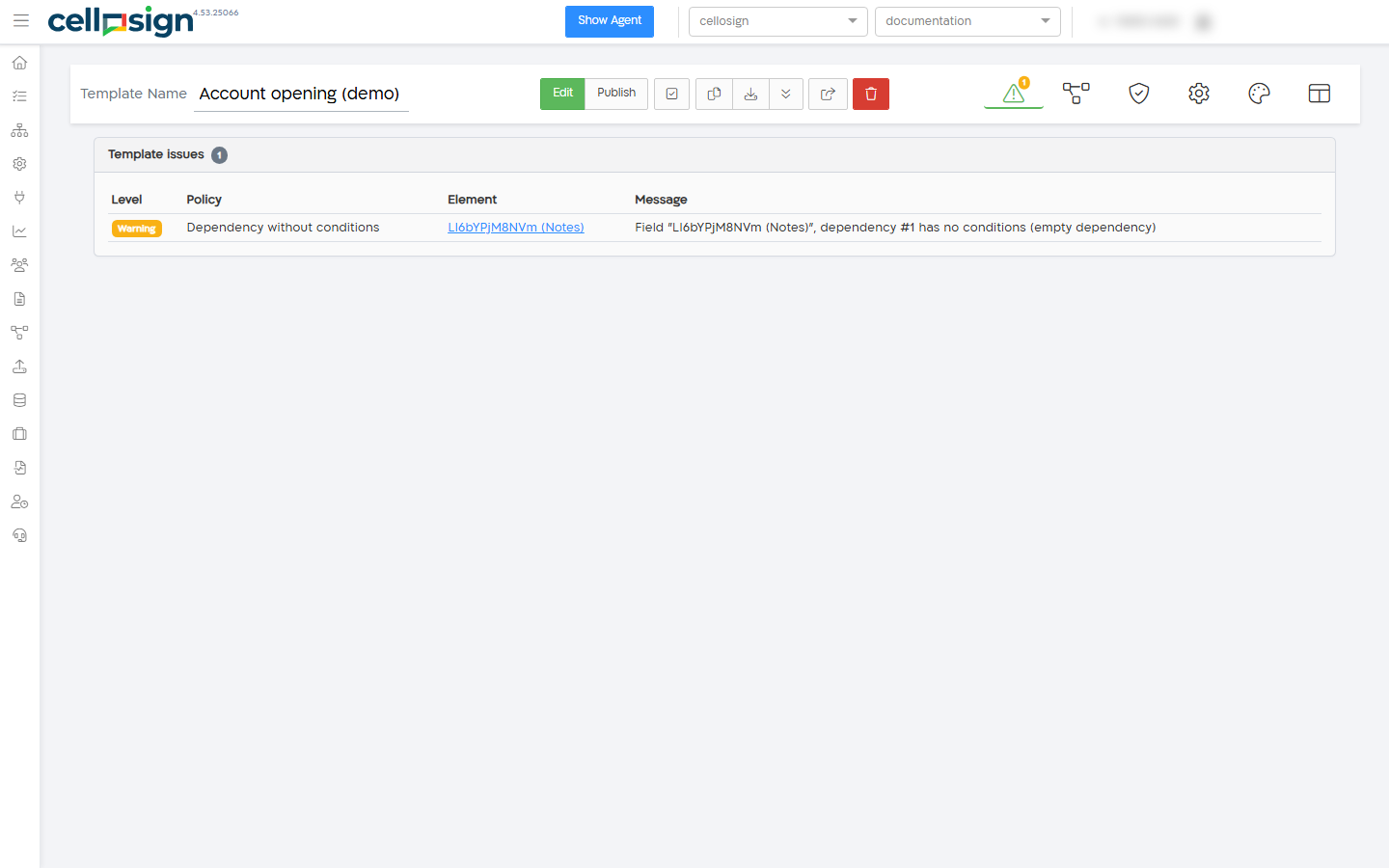
The Issues tab lists the issues in a table, errors first:
| Column | What it shows |
|---|---|
| Level | Error or Warning. |
| Policy | The check that found the issue. |
| Element | The field, control group or other element with the problem. When it is a link, click it to open the element’s settings, on the tab where the problem is. |
| Message | What is wrong. |
When you save, every issue is also shown as a message, “Validation Error” or “Validation Warning”. When one check finds 4 or more issues, they are shown together in one message, for example “5 issues: Duplicate radio values”. Click the element name in a message to open it.
Checks
Section titled “Checks”| Check | Level | What it finds |
|---|---|---|
| Duplicate IDs | Error | Two elements with the same ID. Fields, pages, sections and rows share one set of IDs, so each ID must be unique among all of them. |
| Section without ID | Error | A section without an ID. |
| Structure element without options | Error | A page, section, row or column that is missing its settings. |
| Placed field does not exist | Warning | The HTML form or a PDF page places a field that isn’t in the template. |
| Field without type | Warning | A field without a field type. |
| Dependency without conditions | Warning | A dependency with no conditions. |
| Dependency condition without field | Warning | A dependency condition with no field selected. |
| Dependency condition without operation | Warning | A dependency condition with a field but no operation. |
| Dependency without recipient | Warning | When the template has a workflow, a dependency with no role. Auto Date fields and fields in a control group are not checked. |
| Dependency references a missing field | Warning | A dependency that uses a field that isn’t in the template. |
| Conditional value without value | Warning | A conditional value with no value or formula. |
| Conditional value without conditions | Warning | A conditional value with no conditions. |
| Conditional value condition without field | Warning | A condition of a conditional value with no field selected. |
| Conditional value condition without operation | Warning | A condition of a conditional value with no operation. |
| Conditional value condition without value | Warning | A condition whose operation compares with a value, but no value is set. |
| Circular conditional values | Warning | Fields whose conditional values depend on each other in a loop. |
| Radio value contains a comma | Warning | A Radio item value with a comma. |
| Duplicate radio values | Warning | Two items of a Radio field with the same value. |
| Select option contains a comma | Warning | A List Of Values option text with a comma. Options from a data source are not checked. |
| Duplicate select options | Warning | Two options of a List Of Values field with the same text. Options from a data source are not checked. |
| Table column without label | Warning | A Table column with an empty label. |
| Template sequence without target | Warning | A templates sequence entry with no target template. |
| Template sequence condition without value | Warning | A templates sequence entry with a condition field but no value. |
| Policy engine | Error | The checks couldn’t run. Reload the page and try again. |
To fix field problems, see Field settings. For the templates sequence, see Configuration.