
Formula Builder
The Formula Builder builds a value from form fields, fixed texts and data model items, without code. For example, it joins a first name and a last name into a full name, adds VAT to an amount, or lists the names of all the signers.
You open it with the formula button of:
- a Default Value or a dependent value, on the Conditional Values tab (Edit Formula);
- a column of a table bound to the data model, on the Repeater tab (Formula editor);
- a field mapping of a Salesforce connector. See Data mapping and conversions.
Build a formula
Section titled “Build a formula”- Click the formula button. The Formula Builder opens with one group.
- At the top of the group, select how its rules are combined: CONCAT (the default), REPEAT, CALC or CLEAR. See Groups.
- Click Add Rule, and select the source of the rule: Form Field, Fixed Value or Model. See Rules.
- Add more rules. To delete a rule, click its trash icon (Remove rule).
- To combine some of the rules in another way, click Add Group. A group has its own CONCAT, REPEAT or CALC, and can hold rules and other groups. To delete a group, click Remove Group.
- Click Save. Cancel closes the Formula Builder without saving.
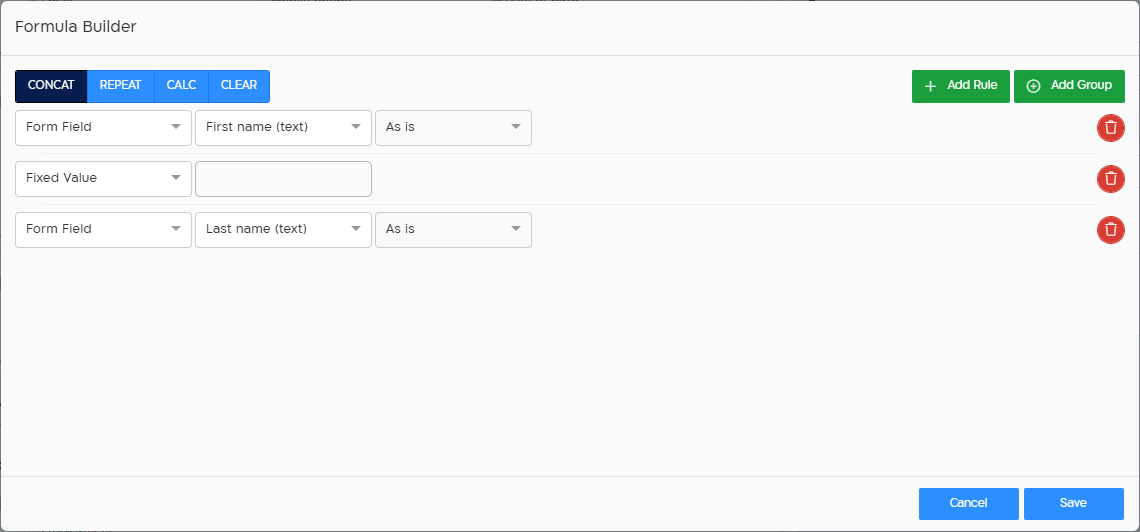
Save is available only when the formula is complete: each group has at least one rule, each Form Field and Model rule has a field, each Fixed Value rule has text (a space is enough), and each operation that needs a format has one.
After you save, the formula is shown as text, for example CONCAT(#FNAME CONST(" ") #LNAME), and the formula button turns green. The text is in capital letters, also the field IDs. To change the formula, click the formula button again. To remove it, click the trash icon (Clear value/formula).
Groups
Section titled “Groups”| Option | What it does |
|---|---|
| CONCAT | Joins the values of the rules, in order, without spaces. To put a space between two values, add a Fixed Value rule with a space. |
| REPEAT | Repeats the rules for each item of a list of the data model, and joins the items. See REPEAT. |
| CALC | Calculates with the values of the rules. See CALC. |
| CLEAR | Empties the field (“Value will be cleared”). Has no rules. Available for the top group only. See CLEAR. |
Spaces at the start and the end of the result are removed.
REPEAT
Section titled “REPEAT”REPEAT builds a list from a list of the data model, for example the names of all the signers. It has these settings:
| Setting | What it does |
|---|---|
| Model | The list (an Array item of the data model) to repeat for. Shown when the data model is included in your organization’s plan and the data model has a list. |
| Delimiter | The text between two items, for example , . Type the delimiter you need. |
| Index | Adds a number, a letter or a bullet before each item: 1, 2, 3, a, b, c, A, B, C, א, ב, ג or Bullet. After the last letter, numbers are used. – select –: no index. |
When a process builds a template from this template and a set of data, the group is replaced by the items of the list. For each item, you get the index, and then the rules of the group, with the values of the item. Use Model rules for the values of the item. The index is put right before the first rule: to separate them, start with a Fixed Value rule, for example . .
In field formulas, REPEAT needs a Model. Without one, use CONCAT. In Salesforce connectors, REPEAT repeats the rules for each record that the query found.
CALC calculates with the values of its rules, by the Operation:
| Operation | Result |
|---|---|
| Add (+) (the default) | The sum of the values. |
| Subtract (-) | The first value minus the other values. |
| Multiply (×) | The product of the values. |
| Divide (÷) | The first value divided by the other values. |
| Round | The first value, rounded to a whole number. |
- In a CALC group, Form Field rules can use only Number, ID Number, Text, Radio and List Of Values fields. A group inside the CALC group can use any field.
- Each value must be a number. Values with thousands separators, such as 12,123.45, are read as numbers.
- The results of Add, Subtract, Multiply and Divide have decimals, for example 1170.00. To round a calculation, put it in a group inside a Round group.
CLEAR empties the field. Use it in a dependent value, to empty a field when the conditions are met, for example to clear a date when the client changes the answer it depends on. A default value with CLEAR gives no default value.
| Source | What to set |
|---|---|
| Form Field | Select the field (– select field –), and an operation. See Operations. The list shows the fields of the template as the question and the type, except Location, Paragraph, Button and Drawing fields. Don’t use the field itself. |
| Fixed Value | Type the text in Enter text. |
| Model | An item of the data model. Shown when the data model is included in your organization’s plan, in a REPEAT group with a Model and in the column formulas of a table bound to a list. The list shows the items of that list. The value is filled in when a process builds the template from data. |
In a repeated page, section or row, a Form Field rule uses the copy of the field in the same repeated item.
Operations
Section titled “Operations”| Operation | Field types | Result |
|---|---|---|
| As is | All | The value of the field as it is. For a Radio or List Of Values field, the value of the selected option. |
| Ceil (round up) | Number | Rounds up to a whole number: 1.1 → 2, -7.004 → -7. |
| Floor (round down) | Number | Rounds down to a whole number: 1.1 → 1, -7.004 → -8. |
| Currency format | Number | Select the format: thousands separators with two decimals (123456.789 → 123,456.79), or a whole number with thousands separators (123456.7 → 123,457). |
| Date format | Date, Auto Date | The date in the format you select, for example 28/02/2022 or 28 Feb 2022. The name of the month is in the language of the project. An empty date gives an empty result. |
When a field has only As is, the operation can’t be changed.
When formulas are calculated
Section titled “When formulas are calculated”| Formula of | Calculated |
|---|---|
| A Default Value | Once, when the transaction is created, from the default values of the other fields. |
| A dependent value | While the form is filled in: when its conditions are met, and again each time a value it uses changes. |
| A table column, Model rules and REPEAT with a Model | When a process builds a template from this template and a set of data. See Data model. |
Examples
Section titled “Examples”| Goal | Formula | Result |
|---|---|---|
| A full name | CONCAT: Form Field first name, Fixed Value with a space, Form Field last name | Dana Tidewell |
| An amount with VAT | CALC, Multiply (×): Form Field amount, Fixed Value 1.17 |
1170.00, for an amount of 1000 |
| A rounded total | CALC, Round, with a group: CALC, Add (+): Form Field amount, Form Field fee | 1250, for 1000 and 250.4 |
| A list of the signers | REPEAT, Model signers, Delimiter , , Index 1, 2, 3: Fixed Value . , Model signer_name |
1. Dana Tidewell, 2. Noa Tidewell |
| An amount with separators | CONCAT: Form Field amount, Currency format with two decimals | 1,250,000.00 |