
Backup and recovery
The Backup and Recovery card saves the whole project to a .cellosign file, and restores a project from such a file. Use it to keep a copy of the project before a big change, or to move a project’s setup to another environment.
The card is shown when backup is included in your organization’s plan, to users with the Implementer, Project manager or Organization manager role.
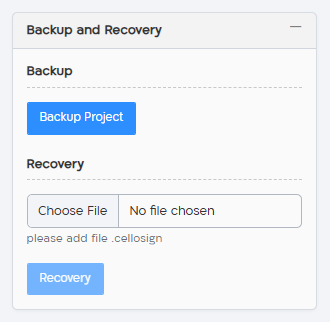
Back up the project
Section titled “Back up the project”- In the Backup and Recovery card, click Backup Project.
- Wait while Cellosign prepares the file. When it is ready, the browser downloads it, and the message “Project backup completed successfully” appears.
The file includes:
- all the project’s templates, with their PDF files and images;
- the active workflows;
- the dictionaries, with their values, and the data tables;
- the active integrations: webhooks, storage, SMS, SMTP, payment, SAML and CIV;
- the Auth screens;
- the project’s settings and security settings.
It doesn’t include users and their roles, dashboards, transactions, processes, signed documents, the audit log, secrets and mTLS certificates.
To save only one template or one workflow with the objects it uses, use Export recovery in the template editor or Backup in the workflow editor.
Restore the project
Section titled “Restore the project”- In the Backup and Recovery card, under Recovery, click Choose File and select a
.cellosignfile. - Click Recovery. The message “Project restore completed successfully” appears.
The restore starts right away, without asking you to confirm. It replaces what is in the project with what is in the file:
- A template with the same ID is replaced. Its current version is kept first as a draft named “Copy of” followed by its name.
- A workflow with the same ID is replaced and activated.
- Dictionaries and integrations with the same ID are overwritten.
Objects that aren’t in the file are left as they are. A file can’t be restored into another project of the same environment while the original project still has the same objects.
To import one template or workflow from a .cellosign file, see Import a .cellosign file and Import a workflow from a file.