
Configuration
The Configuration tab of the template editor holds the settings of a template that are not about its look: how the form behaves, the messages Cellosign sends, the recipients (roles) who fill in the form, and what happens after the form is submitted.
To open it, open the template and click Configuration (the gear icon). The settings are grouped in sub-tabs. Click a sub-tab in the list on the side of the tab.
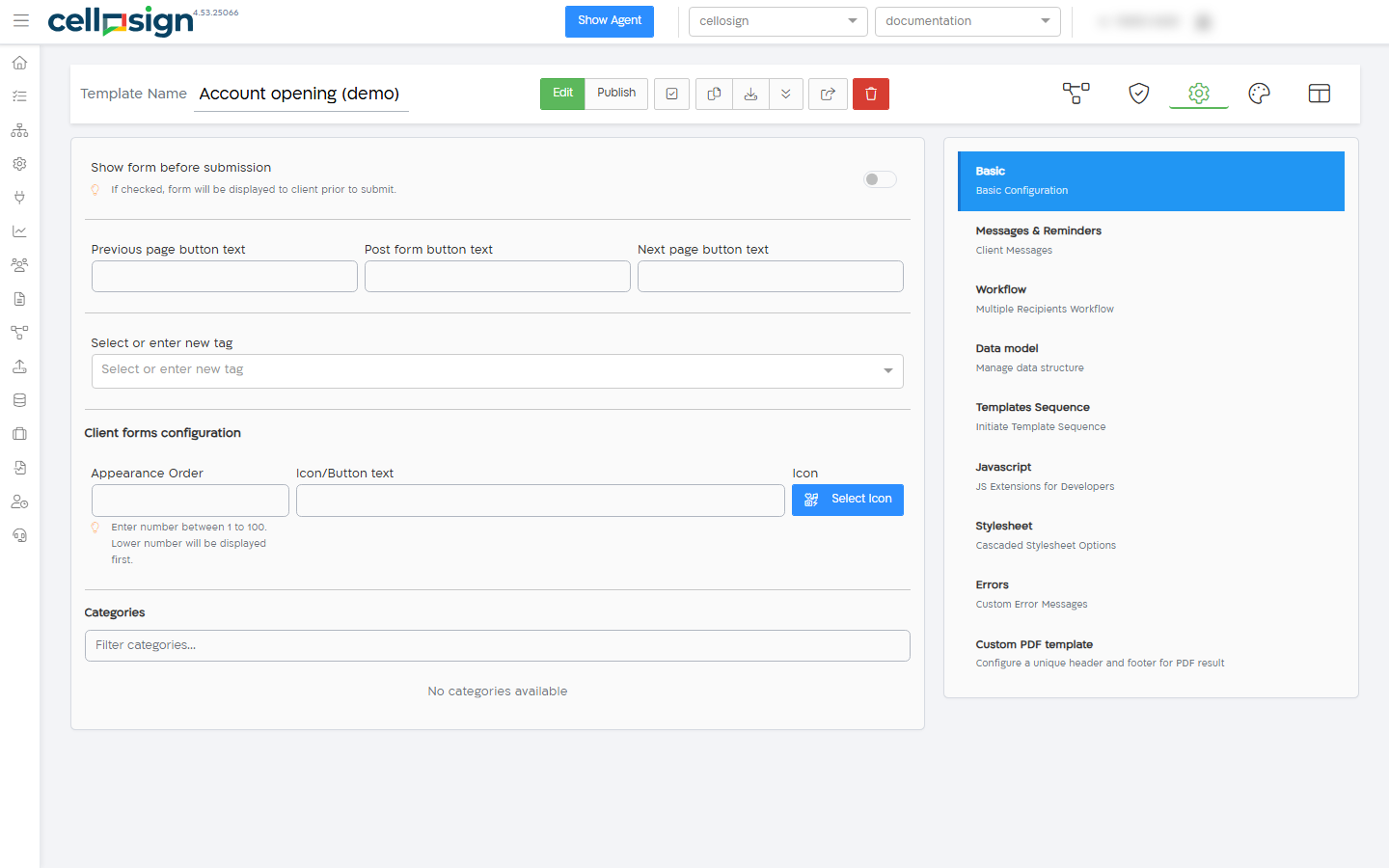
| Sub-tab | What’s on it |
|---|---|
| Basic | Showing the form before submission, the texts of the navigation buttons, tags, client forms settings and categories. |
| Messages & Reminders | The description of the transactions, the SMS and email texts, the signed PDF file name, expiration reminders and data tables in emails. |
| Workflow | Several recipients (roles) who fill in the form one after the other, how each one signs in, and conditions between them. |
| Data model | The structure of the data that a template is built from, to repeat parts of the form or recipients for each item in a list. |
| Templates Sequence | Other templates that Cellosign sends automatically when a form of this template is completed. |
| Javascript | Your own JavaScript code for the form. Shown only when custom JavaScript is included in your organization’s plan. |
| Stylesheet | Your own CSS for the form. |
| Errors | Your own texts for some error messages. |
| Custom PDF template | Your own header and footer for the signed PDF. Shown only for HTML templates, when custom PDF templates are included in your organization’s plan. |
Some settings are shown only for some kinds of templates, or only when the template’s workflow is on. Each page describes when a setting is shown.
Save your changes
Section titled “Save your changes”Changes on the Configuration tab are saved when you save the template: click Save (the check icon) on the template’s toolbar. Two buttons save on their own:
- Save Data Model, on the Data model sub-tab, saves the data model right away.
- Edit, on the Workflow sub-tab, saves the template before it opens the process editor.
To view and edit templates, you need the Implementer role or higher. See Roles and permissions.