
Projects
A project is a workspace of your organization. Templates, workflows, integrations, data sources and transactions belong to a project, and users get their roles per project. An organization can have several projects, for example one for each department or line of business.
The Projects screen holds the settings of the selected project: its language and logo, the emails it sends, its security rules, the defaults of its forms, and the pages your clients see.
Open the Projects screen
Section titled “Open the Projects screen”- In the top bar, select the project. If you work in several organizations, select the organization first.
- In the left menu, click Projects (the gear icon).
The screen shows the project’s name and its settings in cards. To switch to another project, select it in the top bar: Manager Studio opens the Dashboard of that project, and you click Projects again.
The screen is available to users with the Implementer, Project manager or Organization manager role. Some cards are shown only to project managers and organization managers, and some only when they are included in your organization’s plan. See Roles.
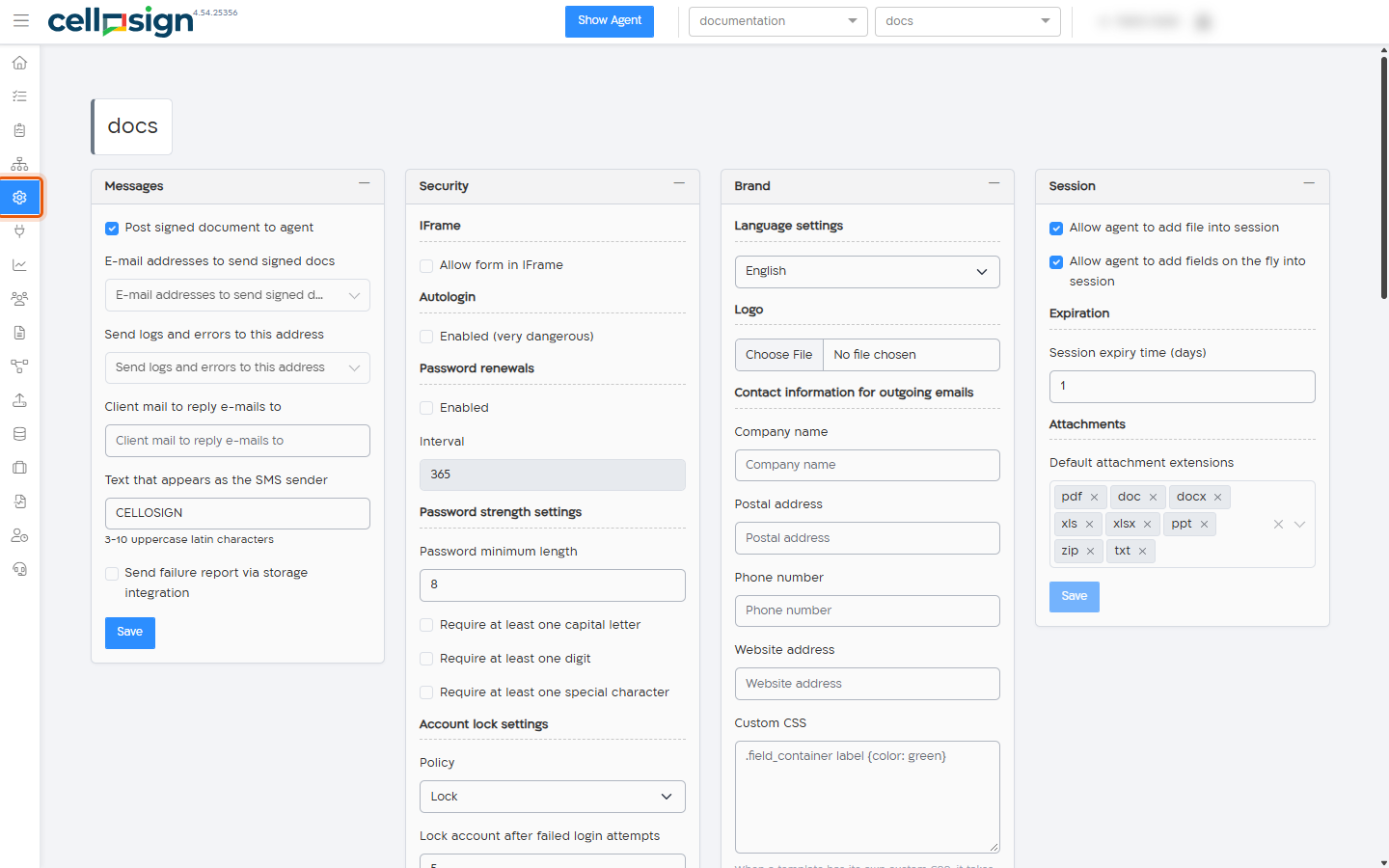
The cards
Section titled “The cards”| Card | What it sets | Shown to |
|---|---|---|
| Messages | Who gets the signed documents and the error reports, the reply-to address of emails and the SMS sender name. | Everyone who sees the screen |
| Security | Password rules, account lock, idle sign-out, how long transactions are kept, IP and country restrictions, mTLS for API v3 and the default regex of new fields. | Project managers and organization managers |
| Brand | The project’s language, logo, company details and custom CSS. | Everyone who sees the screen |
| Session | What agents can add to a form, the default expiration of forms and the default file types of attachments. | Everyone who sees the screen |
| Backup and Recovery | Saves the project to a file, and restores it from one. | When backup is in your plan |
| MFA Settings | Two-step verification for the project’s users. | Project managers and organization managers, when MFA is in your plan |
| Secured File Upload | Malware checks of the files clients upload. | When file cleansing is in your plan |
| Client forms | The page where clients sign in and see all their open forms. | Everyone who sees the screen |
| Auth screens | Sign-in pages that identify a client through your system before a form opens. | When Auth screens are enabled for your organization |
Save your changes
Section titled “Save your changes”Each card has its own Save button, which saves only that card. Save a card before you change another one. MFA Settings is saved as soon as you turn the switch, and Backup and Recovery has buttons that act at once.
To make room on the screen, click − in the header of a card to collapse it, and + to open it again.