
Text
A Text field is a single line of text that the client types. It is available in HTML and PDF templates.
A new Text field is Required, and both the client and the agent can edit it. For the settings that all fields share, such as the label, the permissions, the dependencies and the default value, see Field settings. For several lines of text, use a Text Area. For a number, an email address, a phone number or an Israeli ID number, use a Number, Email, Telephone or ID Number field, which check the value for you.
Values & Display
Section titled “Values & Display”| Setting | What it does |
|---|---|
| Show clear buttons | Shows an X button that empties the field. The button appears while the client edits a field that has a value, and only to viewers who can edit the field. |
Validation
Section titled “Validation”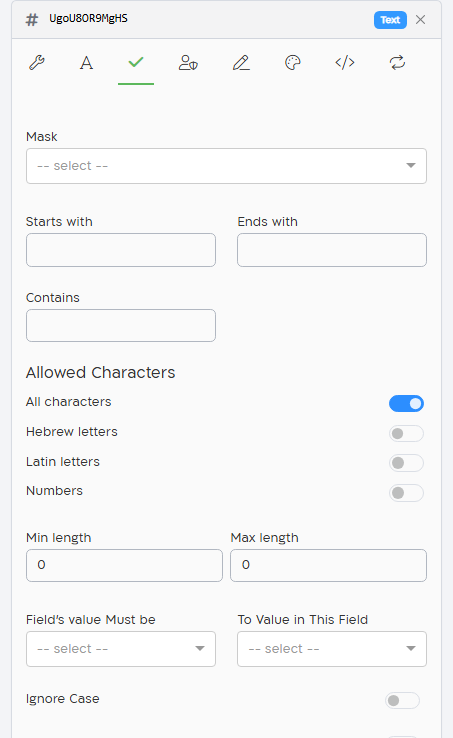
| Setting | What it does |
|---|---|
| Mask | A fixed format for the value. See Masks. When a mask is selected, Starts with, Ends with, Contains, Allowed Characters, Min length and Max length are hidden and not applied. |
| Starts with, Ends with, Contains | The value must start with, end with or contain this text. The check is case-sensitive. |
| Allowed Characters | All characters (the default), or any combination of Hebrew letters, Latin letters and Numbers. See Allowed characters. |
| Min length, Max length | The minimum and maximum number of characters, from 0 to 100. 0 means no limit. |
| Field’s value Must be, To Value in This Field, Ignore Case | Compare the value with another Text field, with Equal or Not Equal. See Compare with another field. |
| Validate bank account number | Shown when bank account validation is part of your plan and you have permission to use it. Checks the bank account number in this field together with the Bank code and the Branch code. Select the fields that hold them: Text, Number or List Of Values fields. |
| Error Message Invalid | The message shown when the value is not valid, instead of the default message. |
| Error if no value entered | The message shown when the field is required and empty, instead of the default message. |
| Regex Validation | A regular expression that the value must match. See Regex Validation. |
Mask and Regex Validation can’t be used together. Selecting a mask clears the regex, and entering a regex clears the mask.
New Text fields start with the project’s default regex, if one is set. See Project security.
Allowed characters
Section titled “Allowed characters”Turning on Hebrew letters, Latin letters or Numbers turns off All characters. Turning them all off turns All characters back on.
- With Numbers only, the client can type digits only.
- With Hebrew letters or Latin letters, the client can also type spaces, apostrophes (’), quotation marks (“), underscores (_) and hyphens (-).
The client can’t type or paste characters that are not allowed.
Use Allowed Characters or Regex Validation, not both. When specific characters are allowed, the form checks the allowed characters instead of the regex.
The client types the value in the mask’s format. In the formats, each 9, 0 or # stands for a digit. A masked field is always written left to right.
| Mask | Format |
|---|---|
| Credit card | 9999-9999-9999-9999 |
| Car plate number | 99-999-99 |
| IP Address | 099.099.099.099 |
| Percent | ##0.00% |
| Full percent | ##0% |
| Currency | ###,###,##0.00 |
| Integer with commas (thousands) | Whole numbers with a comma between thousands, for example 1,250,000 |
| SSN | 999-99-9999 |
| hh:mm | A time, for example 09:30. The mask sets the format only; it doesn’t check that the time exists. |
Conditions
Section titled “Conditions”In conditions, a Text field supports Empty, Not Empty, Equal and Contains.