
Signature
A Signature field opens a pad where the client signs with a finger, a stylus or the mouse. The signer’s handwritten signature is added to the signed PDF. It is available in HTML and PDF templates.
A new signature field is required, and only the client can sign it. Signature fields have no Repeater tab. For the settings that all fields share, such as the label, permissions, dependencies, style and position, see Field settings. For a free drawing, such as a sketch, use a Drawing field.
Values & Display
Section titled “Values & Display”| Setting | What it does |
|---|---|
| Data labels | Fields whose values are embedded in the signature in the signed PDF, for example the signer’s full name and ID number. You can select any field except signatures and paragraphs. The values aren’t shown on the pad. To see them, open the signed PDF in Adobe Acrobat Reader and look at the signature details in the Signatures panel. |
| Signature text | The text of the button that the client clicks to sign. If you don’t set it, a default text, such as “Click to sign”, is shown. |
Signature options
Section titled “Signature options”The signature options are on the Validation tab. Capture Company Seal, Company stamp from image and Automatically apply employee signature can’t be combined: when you turn one on, the other two turn off.
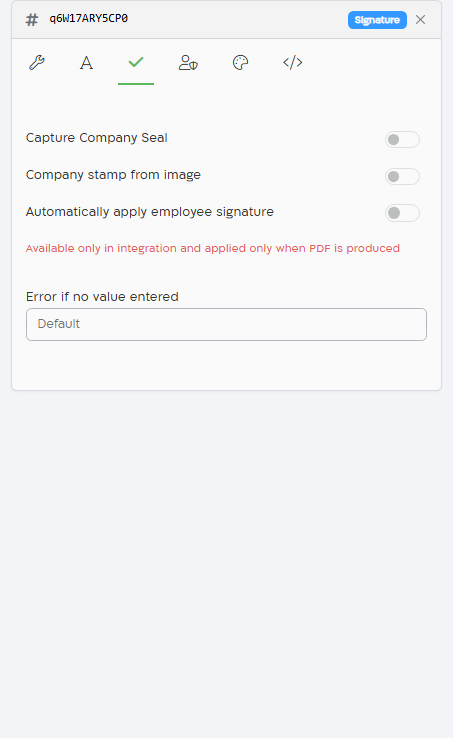
| Setting | What it does |
|---|---|
| Capture Company Seal | The client signs over a company seal made from the company name, ID and type. In Company name (a Text field), Company ID (a Text or Number field) and Company type (a Text, Radio or List Of Values field), select the fields that hold these values. If the fields aren’t selected or have no value, the client is asked to enter the business name, the business type (Self-Employed or Company) and a valid 9-digit business ID before signing. |
| Company stamp from image | The client uploads an image, for example a company stamp, and signs over it. The image is used as is. The client can upload a JPG, PNG, GIF or BMP image of up to 5 MB. |
| Automatically apply employee signature | Offers the signer their saved personal signature. Shown when personal signatures are included in your organization’s plan. The signer must be signed in to Cellosign and have a signature saved in their profile. When the pad opens, the signer is asked whether to use the saved signature. If they decline, they sign on the pad. |
| Display signature confirmation at the bottom of this page at the PDF file | Adds the signature again at the bottom of every PDF page created from this HTML page, except the page where the signature field is. Shown only for HTML templates, when Show form before submission is on in the template’s basic configuration and PDF signatures are included in your organization’s plan. You can turn it on for up to 6 signatures per page. A long label might not fit in the confirmation box. |
| Display the confirmation also at the page where this signature control will appear | Shown when the previous option is on. Adds the confirmation also on the PDF page where the signature field is. |
Before you use automatic signatures, check with your legal advisor that they meet your requirements.
The Validation tab also has Error if no value entered. See Validation.
Template options for signatures
Section titled “Template options for signatures”The template’s Information Security tab has more options that apply to all signatures in the template: eIDAS (signatures are audited), Add browser timestamp to signature field, Clone graphic signature for approval (the last signature is copied to the next signature pads, and the client accepts each one) and Initialize controls on form load with Clean up signatures only. See Information Security.
What the client sees
Section titled “What the client sees”- The field shows a button with the Signature text.
- The client clicks the button. The signature pad opens.
- The client signs. They can switch between a blue and a black pen, or click Clear to start again.
- The client clicks Accept. The signature is shown in the field. To sign again, the client clicks the signature.
When the client turns on Keyboard Navigation in the accessibility menu, they upload an image of their signature instead of drawing it (JPG, PNG, GIF or BMP, up to 5 MB).
Conditions
Section titled “Conditions”In conditions, a Signature supports Empty and Not Empty.