
Page, section and row settings
Pages, sections and rows have their own settings: an ID, a title, CSS classes, colors, and repeating by the data model. You set them in the side panel of the HTML Template editor.
Open the settings
Section titled “Open the settings”Click the element outside the elements it holds:
- a page: click its margin, outside its sections;
- a section: click its margin, outside its rows;
- a row: click it anywhere outside its fields.
When the template is edited page by page, selecting a page in the Page list also opens its settings.
The side panel shows the element’s ID at the top, with its type: Page, Section or Row. Under it are these tabs, shown as icons:
| Tab | For | What’s on it |
|---|---|---|
| Basic | Page, section, row | The title (page and section) and the CSS classes. |
| Style | Page, section | Colors, title style and logo or icon. |
| Data Model | Page, section, row | Repeating the element for each item of a list. |
At the bottom of the panel are Close and the delete button: Delete Page, Delete Section or Delete Row. When you click it, “Delete this element?” is shown. Click Delete to confirm, or Cancel. The fields of the element stay in the template, and you can place them again from the In Template tab.
Every page, section and row gets an ID automatically. To change it, edit it at the top of the panel and click outside the box.
- An ID can contain only English letters, digits and underscores (
_). Other characters are removed as you type. - An ID must be unique: no other page, section, row or field can have it. If it’s taken, the box turns red and the ID isn’t changed.
The ID is added to the form’s HTML, so you can use it in the template’s CSS or JavaScript. Duplicate IDs and sections without an ID are listed on the Issues tab.
| Setting | What to enter |
|---|---|
| Page title | Page only. The title shown at the top of the page. It’s also the name of the page in the Page list when you edit by page, and in the page list of the form when Show page list is on in Design. |
| Section title | Section only. The title shown at the top of the section. |
| Class | CSS class names to add to the element, for use in the template’s stylesheet. Type a name and press Enter or comma. To remove a class, click its X, or press Backspace in the empty box to remove the last one. |
Style of a page
Section titled “Style of a page”| Setting | What it does |
|---|---|
| Title Background Color | The background color behind the page title. |
| Title Style | Shown when the page has a title. The size of the title: H1 (largest, the default) to H4 (smallest). Paragraph shows it at the size of H2. |
| Title Color | Shown when the page has a title. The color of the title text. |
| Title Position | Shown when the page has a title. Fixed (the default) keeps the bar at the top of the page, with the logo and the template name, at the top of the screen when the client scrolls. |
| Show Logo | Shows the project’s logo in the bar at the top of the page. Default: on. |
| Logo Height | Shown when Show Logo is on. The height of the logo in pixels. Default: 35. |
The template name is shown in the bar when Show template name in title is on in Design. To clear a color, click the trash icon next to it.
In the form, the bar always shows the logo at its standard size: Title Position, Show Logo and Logo Height have no effect.
Style of a section
Section titled “Style of a section”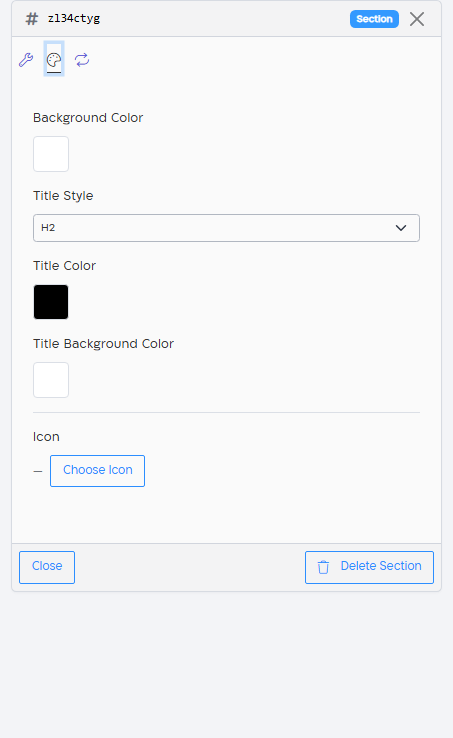
| Setting | What it does |
|---|---|
| Background Color | The background color of the section. It’s applied when the section has a title. |
| Title Style | The size of the title: H1 (largest) to H4 (smallest), or Paragraph for normal text at a slightly larger size. Default: H2. |
| Title Color | The color of the title text. |
| Title Background Color | The background color of the title bar. |
| Icon | An icon shown in the title. Click Choose Icon, search by an English word in Search Icons (for example, “arrow”), click the icon and click Save. To remove it, click Clear Icon. |
| Icon Position | Shown when there’s an icon. Left or Right (the default) of the title. |
| Icon Color | Shown when there’s an icon. The default is dark gray. |
All the settings except Background Color are shown only when the section has a title. To clear a color, click the trash icon next to it.
Titles and screen readers
Section titled “Titles and screen readers”Screen readers announce titles as headings. A page title is always a level-1 heading. A section title with H1 to H4 is a heading of that level, and with Paragraph it’s plain text. For a clear outline, give each page a title and use H2 for its sections, and H3 for sections inside a topic. Keep titles short and unique, so the client can tell the pages and sections apart.
Repeat a page, section or row
Section titled “Repeat a page, section or row”On the Data Model tab, you can repeat a page, section or row once for each item in a list of the template’s data model, for example a section for each insured person.
| Setting | What to enter |
|---|---|
| Repeat | Turn it on to repeat the element. When you turn it off, Repeat Model is cleared. |
| Repeat Model | Shown when Repeat is on. The list in the data model to repeat by. It shows the lists at the top level of the data model. For a section or row inside a repeated page or section, it also shows the lists inside that element’s model. If the list is no longer available, for example because you changed the model of the page around it, the selection is cleared. |
The data model is set in Configuration > Data model. To fill a field from an item of the list, use the field’s Repeater tab.
The elements are repeated when a process creates a template from this template and data, with the BuildTemplateFromData service. This works only when the data model is included in your organization’s plan.