
Configure a generic widget
A generic widget’s settings are on five tabs: Basic, Columns, Filters, Actions and Sorting. They open when you add the widget, and when you click the gear icon on the widget while the dashboard is in edit mode. Click Apply to keep your changes in the widget, and Save the dashboard to store them. Cancel discards the changes.
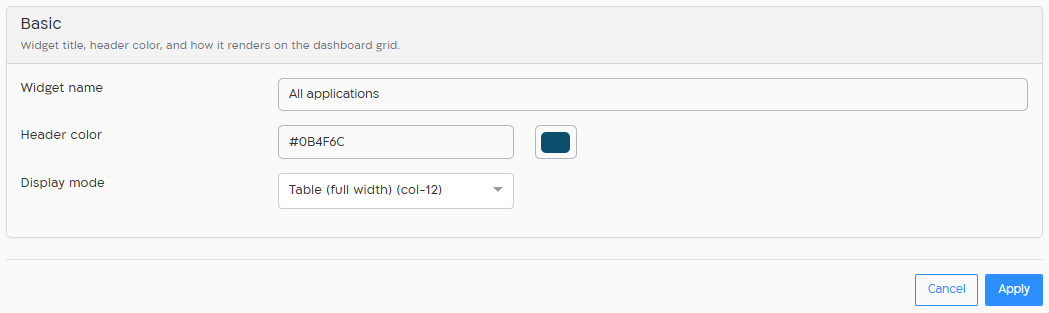
Widget title, header color, and how it renders on the dashboard grid.
| Setting | What it’s for |
|---|---|
| Widget name | The title on the widget. Required. |
| Header color | The color of the counter tile, or of the line under the table title. Type a hex color (#RRGGBB) or pick one. |
| Display mode | Counter (col-2), Table (half width) (col-6) or Table (full width) (col-12). |
Columns
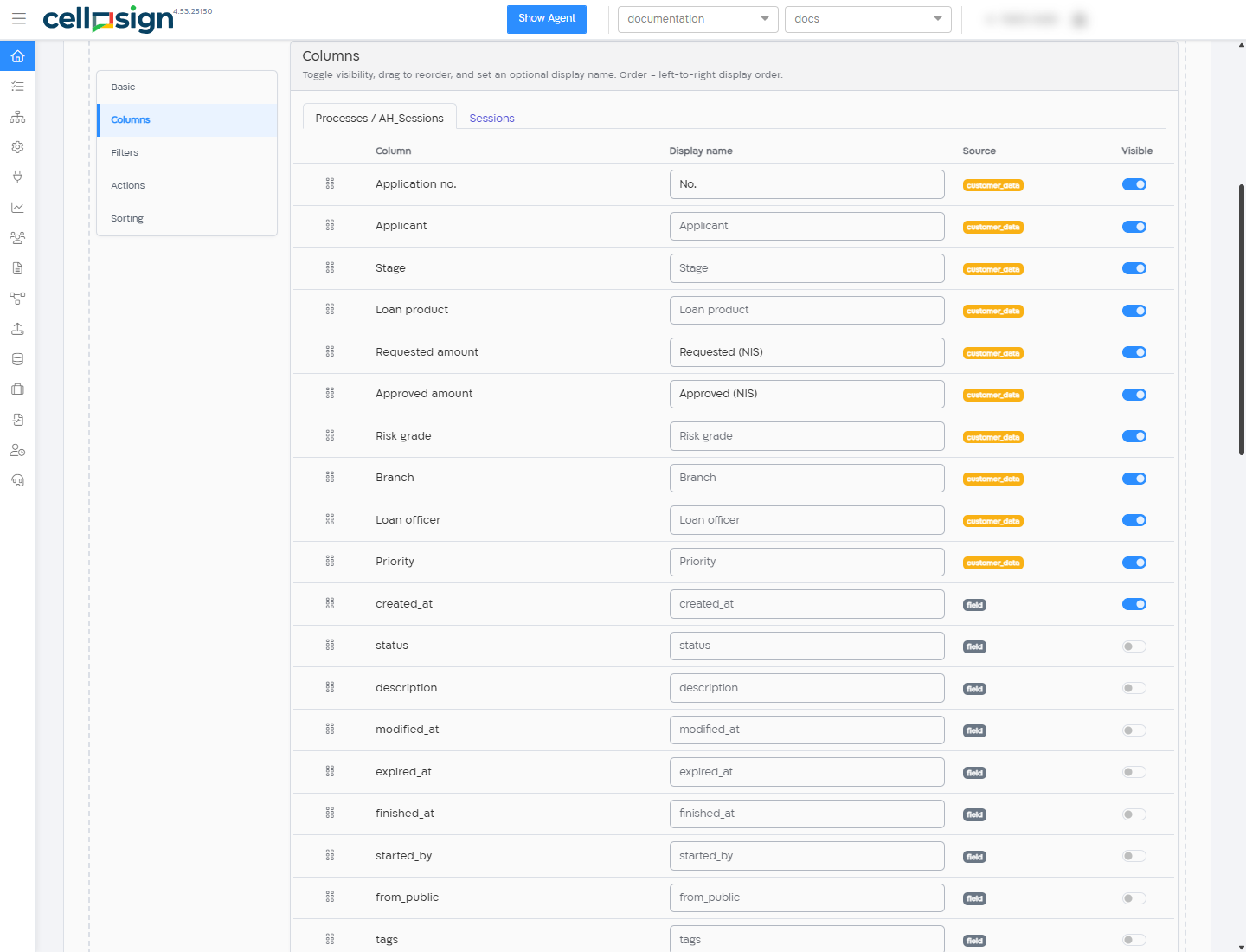
Section titled “Columns”Toggle visibility, drag to reorder, and set an optional display name. Order = left-to-right display order.
The tab has two lists: Processes / AH_Sessions for the rows of the widget, and Sessions for the forms you see when you open a row. For each column:
| What it’s for | |
|---|---|
| Drag handle | Drag the column up or down. The order of the visible columns is their order from left to right. |
| Column | The column. Custom data columns show their label; built-in columns show their name, such as created_at. |
| Display name | Optional. The title of the column in the table, for example “Requested (NIS)” instead of “Requested amount”. Up to 50 characters. |
| Source | customer_data for your custom data, field for built-in columns. |
| Visible | Show the column. A column that a filter uses can’t be hidden: “Used in filter — remove the filter first to hide this column”. |
Filter-only columns are listed under the processes list. They can be used in filters, and you can give them a display name, but they are not shown in the table: original_workflow_id, destination, template, assigned_to_me and fulltext.
Filters
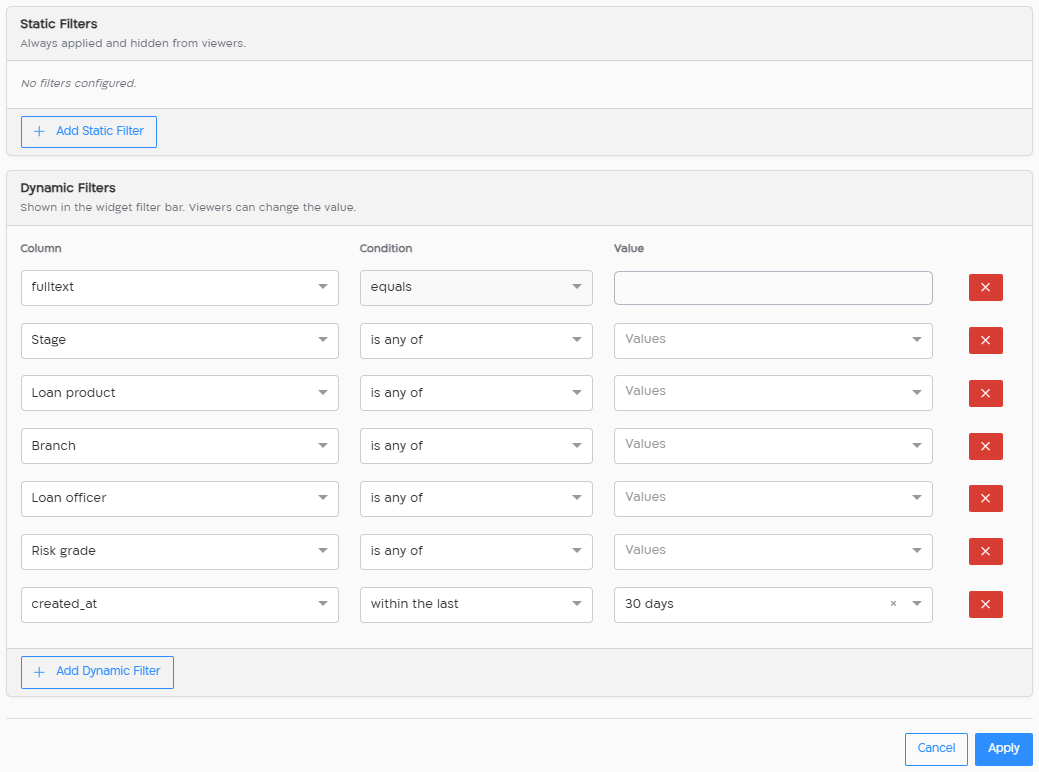
Section titled “Filters”Static filters are always applied. Dynamic filters appear in the filter bar for viewers.
- Static Filters are always applied and hidden from viewers. Use them to decide what the widget is about, for example “Stage is any of In review”.
- Dynamic Filters are shown in the widget’s filter bar. Viewers can change the value. You can set a default value.
Click Add Static Filter or Add Dynamic Filter, then select the Column, the Condition and the Value. You can use any column that can be filtered, also if it is not shown. Each column can appear once in each section. A new widget starts with one dynamic filter, modified_at within the last 30 days; remove it if you don’t need it.
The conditions depend on the column:
| Column | Conditions | Value |
|---|---|---|
A list (custom data list, status, started_by, template) |
is any of, is none of, equals | One or more values from the list |
| Text | contains, equals, is any of, is none of | Text, or several values |
| Number | equals, before / less than, after / greater than, between | A number, or two |
| Date and time | within the last, between, before / less than, after / greater than | 1 day, 7 days, 30 days, 45 days or 50 days; or dates |
| True/false | equals | On or off |
tags, destination |
has any of | Values you type |
assigned_to_me |
equals | On: only processes with a form that was sent to the viewer |
fulltext |
The search box of the filter bar |
Static and dynamic filters together. When a static filter limits a column, a dynamic filter on the same column offers only the values inside that limit (“Limited by static filter: …”). If a static filter fixes the column to one value, the dynamic filter can’t change it (“Fixed by static filter: …”). If the static filters can’t match anything, the editor tells you: “These static filters match nothing.”
Actions
Section titled “Actions”Select which actions are available for row-level and bulk operations. Turn each action on or off for the process rows (Level 1 — Process) and the form rows (Level 2 — Transaction):
| Level | Row Actions | Bulk Actions |
|---|---|---|
| Level 1 — Process | Show Workflow: opens the process. Extend Process, Delete Process | Extend Validity, Delete |
| Level 2 — Transaction | Extend Transaction, Send Reminder, Open Agent App (the form in the agent screen), Open Client App (the form itself), Delete | Extend Validity, Send Reminder, Delete |
Except Show Workflow, actions are offered only for running processes and forms. Delete actions ask for a confirmation.
Sorting
Section titled “Sorting”Initial sort applied on load. Viewers can re-sort by clicking column headers. Select the Default column (any sortable column, also one that is not shown) and the Direction: Ascending or Descending.
- A funnel: one counter for each stage, each with one static filter on the stage, in the order of your process.
- A work queue: a full-width table with a static filter for the stage the team works on, sorted by the deadline, with Open Client App so the team opens the form straight from the row.
- “My” rows: a dynamic filter on
assigned_to_me, or a static one for a counter “Assigned to me”. - Keep the rows meaningful: if some processes have no custom data yet, a static filter on a custom data column (for example the stage, with all its values) hides them.