
Issues
The Issues tab of the template editor lists the problems that Cellosign finds in the template, such as two elements with the same ID or a condition without a field. Use it to find and fix these problems before you publish the template.
Cellosign checks the template when you open it, shortly after each change, and again when you save. When it finds problems, the Issues tab (the warning triangle) appears first among the tabs. Its badge shows the number of issues: red when at least one of them is an error, amber when they are all warnings. When the last issue is fixed, the tab disappears.
| Level | What it means |
|---|---|
| Error | The template can’t be saved until you fix it. |
| Warning | The template can be saved, but the form may not work as expected. |
The Issues tab
Section titled “The Issues tab”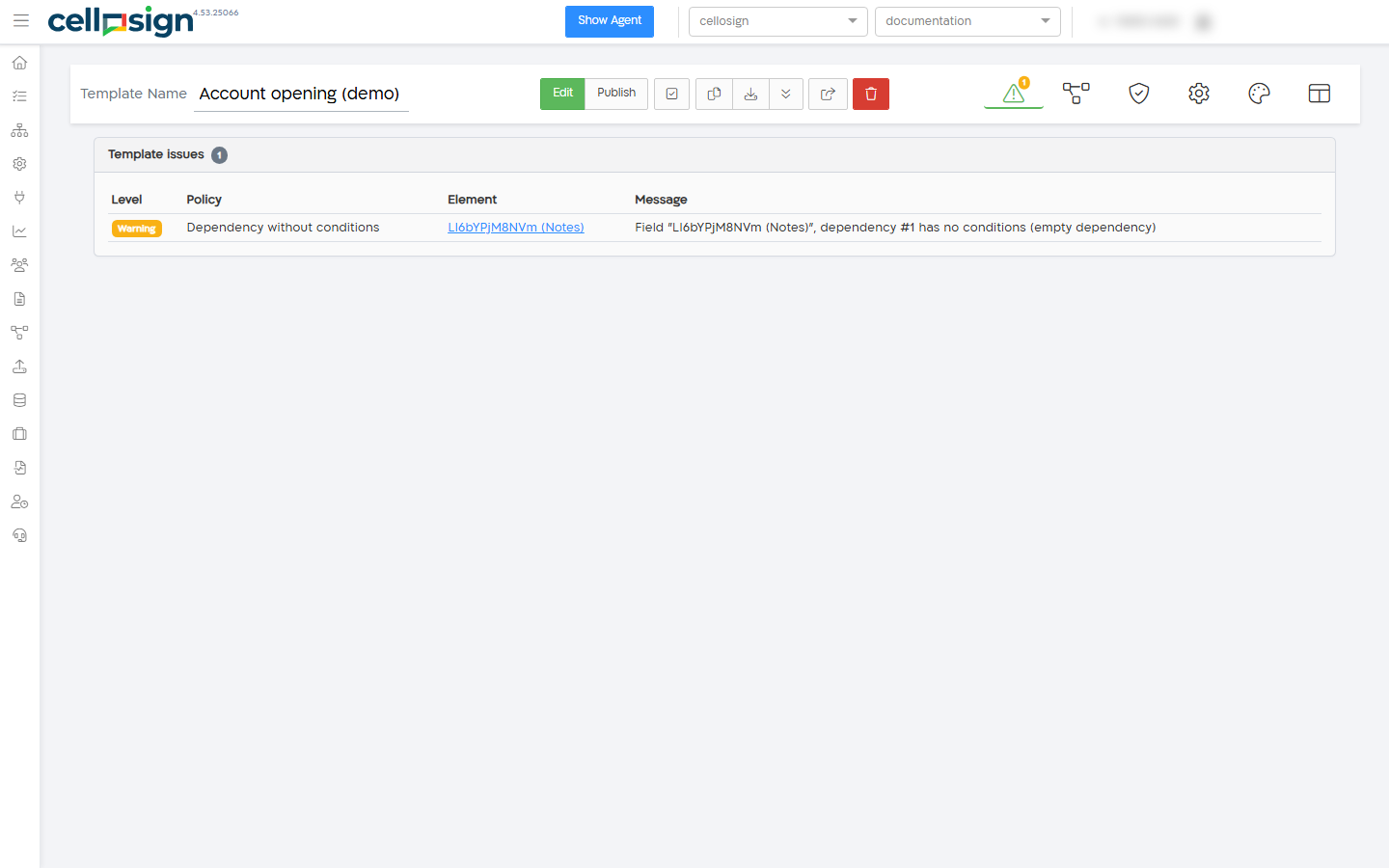
The tab lists the issues in the Template issues table, errors first:
| Column | What it shows |
|---|---|
| Level | Error or Warning. |
| Policy | The check that found the issue. See Checks. |
| Element | The field, control group or other element with the problem, as its ID and label. When it is a link, click it to open the element’s settings. |
| Message | What is wrong. |
Fix an issue
Section titled “Fix an issue”- Click the Issues tab.
- In the Element column, click the link. The settings of the field or control group open on the tab where the problem is, for example Dependencies, Conditional Values, Values & Display or Validation.
- Fix the problem. The issue disappears from the list a moment later.
- Save the template.
Some issues have no link, for example issues about pages, sections and rows, or about the templates sequence. Find the element by the ID or the place given in the message: for a page, section or row, see ID. For the templates sequence, open Templates Sequence on the Configuration tab.
When you save
Section titled “When you save”Before the template is saved, every issue is also shown as a message: “Validation Error” for an error, “Validation Warning” for a warning. When one check finds 4 or more issues, they are shown together in one message, for example “5 issues: Duplicate radio values”. Click the element name in a message to open it.
If there is at least one error, the template isn’t saved. Warnings don’t stop the save.
The server checks the template again when it saves it. For the messages it can show, see Save the template.
Reading-order warnings of a PDF template aren’t listed on the Issues tab, and they never stop the save. See Reading order for screen readers.
Checks
Section titled “Checks”The Policy column shows the name of the check.
Structure
Section titled “Structure”| Check | Level | What it finds |
|---|---|---|
| Duplicate IDs | Error | Two elements with the same ID. Fields, pages, sections and rows share one set of IDs, so each ID must be unique among all of them. |
| Section without ID | Error | A section without an ID. |
| Structure element without options | Error | A page, section, row or column that is missing its settings. |
| Placed field does not exist | Warning | The HTML form or a PDF page places a field that isn’t in the template. |
| Field without type | Warning | A field without a field type. |
Dependencies
Section titled “Dependencies”See Dependencies.
| Check | Level | What it finds |
|---|---|---|
| Dependency without conditions | Warning | A dependency with no conditions. It is always applied. |
| Dependency condition without field | Warning | A condition of a dependency with no field selected. |
| Dependency condition without operation | Warning | A condition of a dependency with a field but no operation. |
| Dependency without recipient | Warning | When the template’s workflow is on, a dependency with no role selected. Auto Date fields and the fields of a control group are not checked. See Dependencies in a workflow. |
| Dependency references a missing field | Warning | A condition of a dependency that uses a field that isn’t in the template, for example a field that was deleted. |
These checks cover the dependencies of fields and of control groups.
Dependent values
Section titled “Dependent values”These checks are about the values set on the Conditional Values tab of a field. See Dependent values.
| Check | Level | What it finds |
|---|---|---|
| Conditional value without value | Warning | A dependent value with no value or formula. |
| Conditional value without conditions | Warning | A dependent value with no conditions. It is always applied. Fields that use Field Clone are not checked. |
| Conditional value condition without field | Warning | A condition of a dependent value with no field selected. |
| Conditional value condition without operation | Warning | A condition of a dependent value with no operation. |
| Conditional value condition without value | Warning | A condition whose operation compares with a value, but no value is set. |
| Circular conditional values | Warning | Fields whose dependent values depend on each other in a loop, for example field A’s value depends on field B, and field B’s value depends on field A. Dependencies (show and hide) are not part of this check. |
Field options
Section titled “Field options”| Check | Level | What it finds |
|---|---|---|
| Radio value contains a comma | Warning | A Radio option value with a comma. |
| Duplicate radio values | Warning | Two options of a Radio field with the same value. |
| Select option contains a comma | Warning | A List Of Values option text with a comma. Options from a data source are not checked. |
| Duplicate select options | Warning | Two options of a List Of Values field with the same text. Options from a data source are not checked. |
| Table column without label | Warning | A Table column with an empty label. |
| Number range ignored | Warning | A Number field whose Maximum is lower than its Minimum. The field then accepts any number. See Minimum and maximum. |
The comma and duplicate checks report only the first problem of each field. When you fix it, the next one, if any, is listed.
Signature columns
Section titled “Signature columns”These checks are about signatures in a table. The server checks the same rules when you save or import the template.
| Check | Level | What it finds |
|---|---|---|
| Invalid signature column selection | Error | A table with more than one column marked as the Signature column. |
| Invalid signature reference | Error | A data label or company value of the signature column that refers to a field or column that doesn’t exist, to the table itself, or to the signature column. |
| Signature field ID collision | Error | A pad ID that the table would create, such as signers_pad_0, is already the ID of another field. Rename the table or the other field. See Pad IDs. |
| Signature field ID too long | Error | A pad ID that the table would create would be longer than 100 characters. Shorten the table ID. |
| Invalid authored signature mapping | Error | A field holds signature data that Cellosign adds only to the forms that it builds. It can’t be part of a template that you edit. |
Templates sequence
Section titled “Templates sequence”See Templates Sequence.
| Check | Level | What it finds |
|---|---|---|
| Template sequence without target | Warning | A templates sequence entry with no target template. |
| Template sequence condition without value | Warning | A templates sequence entry with a condition field but no value. |
Other checks
Section titled “Other checks”| Check | Level | What it finds |
|---|---|---|
| Voice Assistant settings | Error | On the Integrations tab, the Voice Assistant is on without a language, or a language of the Voice Assistant has no voice. See Integrations. |
| Policy engine | Error | The checks couldn’t run, so the template can’t be saved: “Template policies could not run. Saving is blocked to protect the template.” Reload the page and try again. Changes that weren’t saved are lost when you reload. |
If a single check can’t run, it is listed with the message “Policy “…” failed to run.“ and the level of that check.
To fix field problems, see Field settings.