
Workflow conditions
תוכן זה אינו זמין עדיין בשפה שלך.
In a template workflow, the form goes by default to the next recipient in the order, and the process ends after the last recipient. A workflow condition changes this: when the From recipient submits the form and the condition is met, the form goes to the To recipient instead, or the process ends.
The conditions are at the bottom of the Workflow sub-tab, under Workflow conditions, with a preview of the process that Cellosign creates. They are shown when the workflow has 1 to 10 recipients, the template has no data model, and the template isn’t bound to a process (see Edit the workflow as a process).
Add a condition
Section titled “Add a condition”- On the Workflow sub-tab, click Add condition. A row is added.
- Fill in the row (see the table below).
- Save the template.
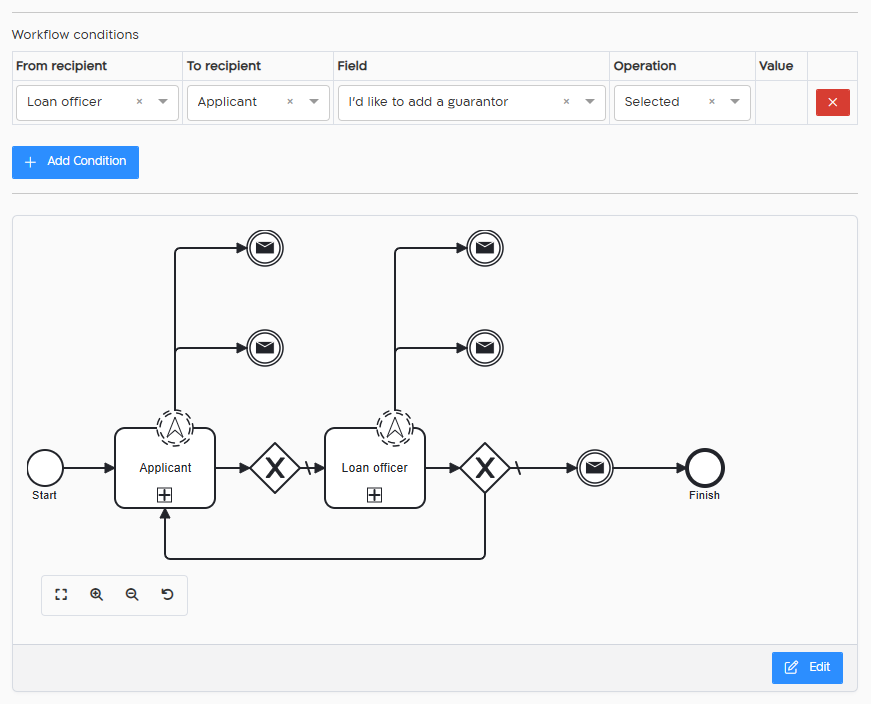
| Column | What to select |
|---|---|
| From recipient | The recipient who submits the form. |
| To recipient | Where the form goes when the condition is met: another recipient, or Finish to end the process. Finish isn’t offered when the From recipient is the last recipient. |
| Field | The field to check. |
| Operation | The check to make. The list depends on the type of the field (see Operations). |
| Value | The value to compare with, for an operation that needs one. For a radio or list of values field, select the value. For a number or date, type or pick it. |
- If several conditions have the same From recipient and To recipient, the form goes there when any one of them is met.
- To delete a condition, click its X (Delete).
- The preview is updated as you edit, except while a row has no From recipient, To recipient or Field.
For example, the loan officer confirms the details with a checkbox, “Documents are complete”. Add a condition with From recipient Loan officer, To recipient Applicant, the checkbox as the Field and Not Selected as the Operation. Until the loan officer selects the checkbox, the form goes back to the applicant.
Operations
Section titled “Operations”| Field type | Operations |
|---|---|
| Text, Email, Telephone | Empty, Not Empty, Equal, Contains |
| Number | Greater than, Less than, Empty, Not Empty |
| ID Number | Equal, Not Equal |
| Checkbox | Selected, Not Selected |
| Radio, List Of Values | Equal, Not Equal |
| Date | Greater than, Less than |
| Image Upload, File Upload | Empty, Not Empty |
Other field types can’t be used in a condition.
Edit the workflow as a process
Section titled “Edit the workflow as a process”Cellosign turns the recipients and the conditions into a process (BPMN). To add steps that the Workflow sub-tab can’t describe, for example a web service call between two recipients, edit that process in the process editor.
Edit is shown under the preview if processes (BPMN) are included in your organization’s plan, the workflow has up to 10 recipients, and the template has no data model.
- Click Edit. Cellosign saves the template.
- The first time, Cellosign creates a process from the recipients and the conditions, and binds the template to it.
- The process opens in the process editor. Change it and save it there.
When the template is bound to a process:
- Sending the template starts this process.
- The preview shows the bound process, and Edit opens it.
- On the Workflow sub-tab, you can’t change Turn workflow on or the recipient settings, and the conditions are hidden. To change the flow, edit the process.
To stop using the process, click Unbind. The template uses its recipients and conditions again. The process itself is not deleted. Unbind takes effect at once, and the template is reloaded, so save your other changes first.