
Work with a generic widget
תוכן זה אינו זמין עדיין בשפה שלך.
This page is for the people who use the dashboards every day. To build a widget, see Configure a generic widget.
Counters
Section titled “Counters”A counter shows how many processes match its filters, for example the applications waiting for a loan officer. Click it (“Click to view details”) to open those processes in a window, with the same columns, search, sorting and actions as a table.
Counters count when the dashboard opens. Reload the page to update them.

Find what you need
Section titled “Find what you need”The filter bar above a table holds the widget’s dynamic filters:
- Search…: type part of a name or a description.
- Lists, for example the stage or the product: select one or more values.
- Dates: select a period, for example 30 days.
- Assigned to me: turn it on to see only processes with a form that was sent to you.
Click Apply to filter, or Reset to go back to the widget’s default values. Your filters and your sort order are remembered in your browser, so the widget opens the way you left it.
Click a column header to sort by it; click it again to reverse the order. At the bottom, choose the Rows per page and see the Total.
See the forms of a process
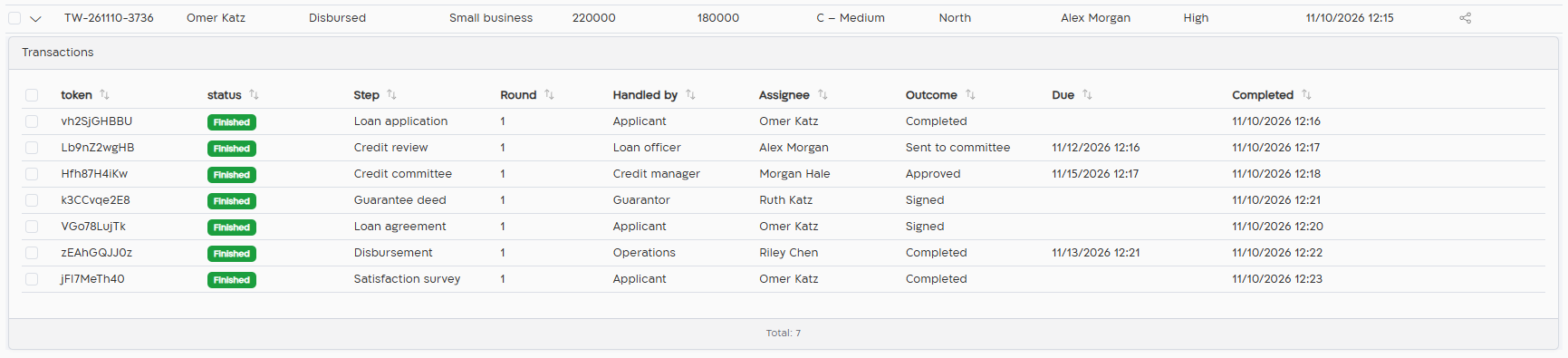
Section titled “See the forms of a process”Click › at the start of a row to open the process’s forms: the loan application, the review, the agreement and so on. Each form has its own columns, for example who handles it, its outcome and its due date.
Act on a process or a form
Section titled “Act on a process or a form”The actions the widget offers are on each row:
| Action | What it does |
|---|---|
| Show Workflow | Opens the process, with its log. |
| Extend Process / Extend Transaction | Gives the process, or the form, more time before it expires. |
| Send Reminder | Sends the recipient a reminder with a message you can edit. |
| Open Agent App | Opens the form in the agent screen. |
| Open Client App | Opens the form itself, to fill it in or sign it. |
| Delete Process / Delete | Cancels the process or the form, after you confirm. |
Actions are offered only for running processes and forms.
Several rows at once
Section titled “Several rows at once”Select rows with the check boxes. The bar above the table shows how many are selected, the bulk actions, and Clear selection:
- Extend Validity: select by how many days to extend. Only running rows are extended; the others are skipped.
- Send Reminder: edit the Message and click Send. Only running forms get a reminder.
- Delete: confirm in Confirm bulk delete. The window tells you how many of the selected rows will be deleted, and how many are skipped because they are not running.
What you see
Section titled “What you see”You see only the processes you’re allowed to see: agents see the processes they started and the processes with a form sent to them; project managers see the whole project. Two people who open the same dashboard can see different rows. See Who sees which rows.