
Notes for Release 4.53
תוכן זה אינו זמין עדיין בשפה שלך.
Over the past weeks we have been working on improvements to Cellosign platform. In this post you can see a list of what has been changed, updated, and/or what bugs have been fixed.
Release rollout schedule
Section titled “Release rollout schedule”Stage environment: Scheduled for release on: 16/11/2026
Production & Pre-Production Environments: Scheduled for release on: 29/11/2026
Enhancements
Section titled “Enhancements”Generic dashboards with your business data
Section titled “Generic dashboards with your business data”Build your own dashboards for every team from the data your forms and workflows collect: one counter for each stage of your process, work queues sorted by deadline, and every case with its forms, all in one configurable Generic Dashboard widget.
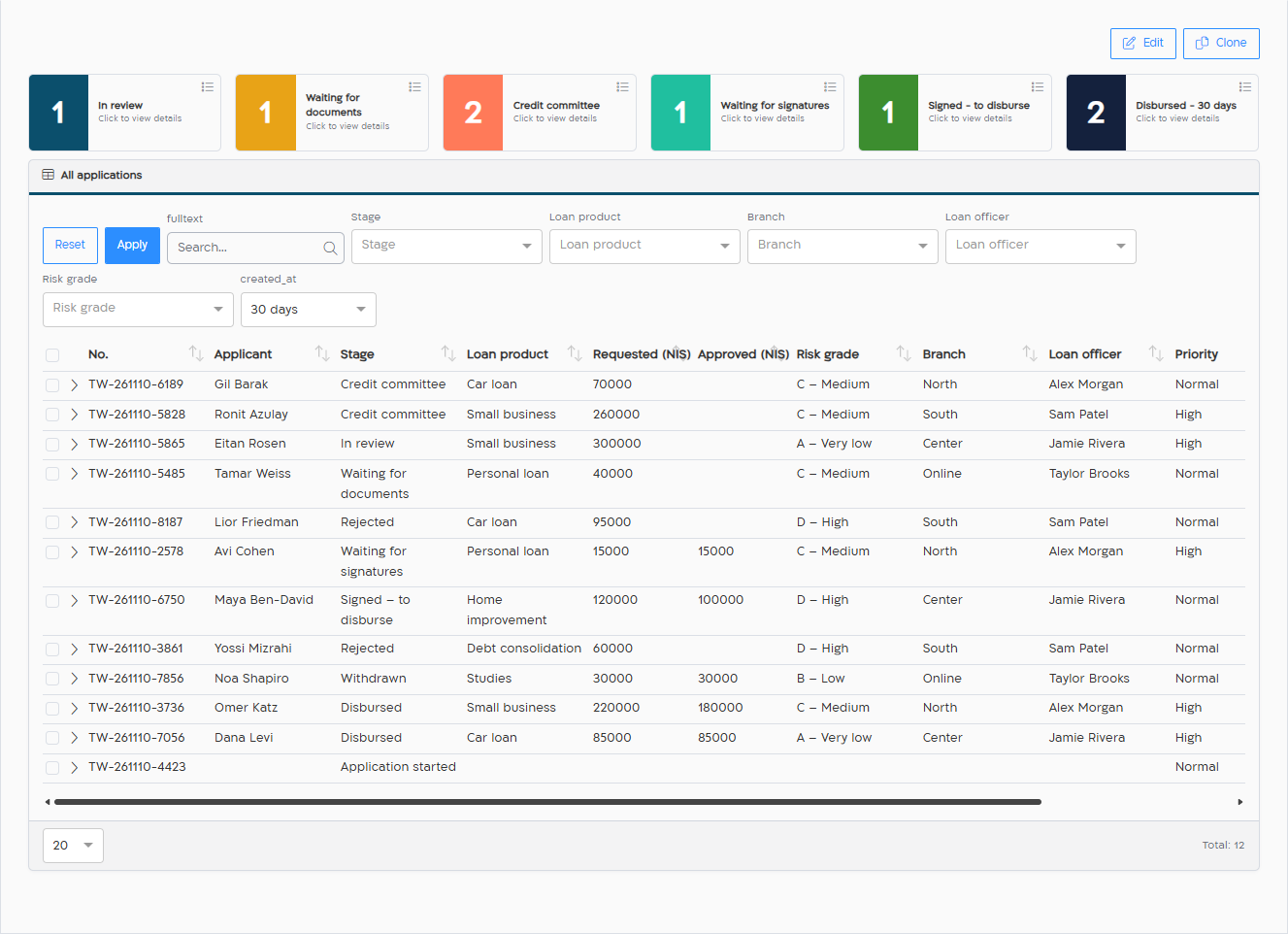
- Your business fields on the dashboard. The project’s custom data (loan amount, product, stage, decision, satisfaction…), written by the workflow’s Database Tasks, can be shown, filtered and sorted, next to the built-in process columns.
- Two levels. Each row is a process; open it to see its forms, each with its own data.
- Counters and tables, with static filters that define the widget and dynamic filters for the viewers, Assigned to me, search, and actions on rows or in bulk (remind, extend, open the form).
- New in this release: display names for columns, and dynamic filters limited to the values the static filters allow.
- Share each dashboard with the team that needs it; everyone still sees only the rows they’re allowed to see.
Custom data is set up by Cellosign staff for now; prepare your list of fields and send it to support. In the next release you’ll be able to define it yourself in Manager Studio.
Read more: Example: dashboards for a loan company · Generic dashboard
Accessible PDFs: screen readers read each value in its place
Section titled “Accessible PDFs: screen readers read each value in its place”When a template is built on a tagged (accessible) PDF, Cellosign adds the values of the form to the PDF: texts, dates, check marks and signatures. Until now these values were added at the end of the PDF’s structure, so a screen reader read the whole document first and only then all the values, without their labels.
From this release, each value is inserted into the PDF’s structure at its place on the page. A screen reader (for example NVDA) reads the value where it appears, next to its label. This works automatically for every template on a tagged PDF; you don’t need to change anything.
Bind a field to its label
For full control, the field settings of a PDF template have a new Accessibility tab. There you choose the label on the PDF that the field is read with:
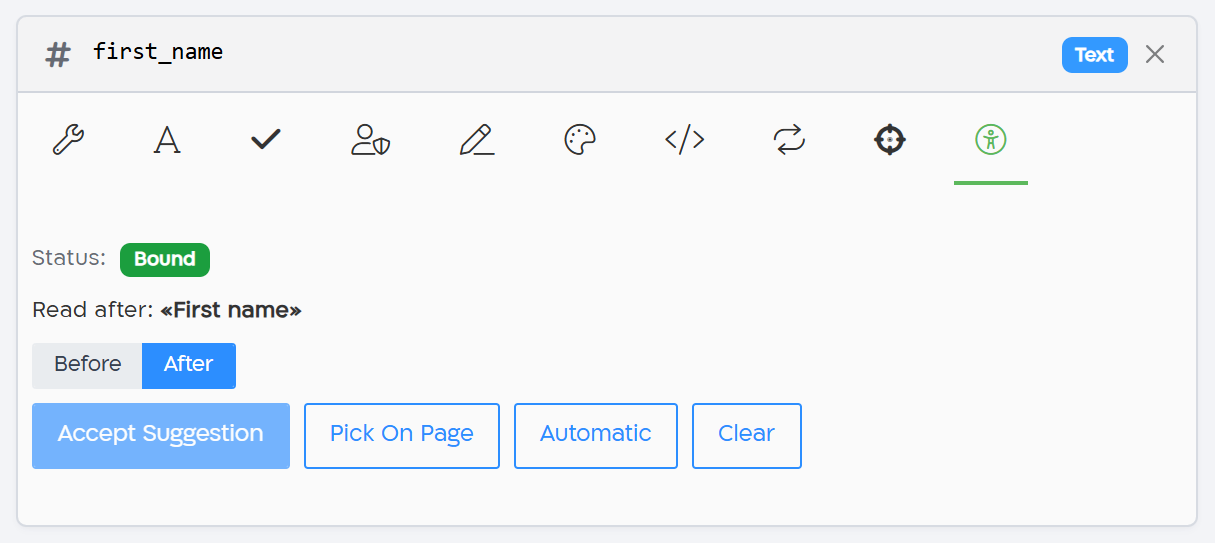
- Pick On Page: click the label on the PDF that the field should be read with (Esc cancels). Before / After sets whether the value is read before or after that label.
- Accept Suggestion: Manager Studio suggests a nearby label. Check that it is the right label before you accept it.
- Automatic: no binding; the value is placed by its position on the page.
- Clear: removes the binding.
- For radio buttons, each option can be bound to its own label.
- The Status shows whether the field is Bound, Suggested, Automatic, Not configured or Stale.
- A bar above the PDF shows how many fields still need attention (Show Details lists them). When you replace the template’s PDF, the existing bindings become Stale: bind these fields again.
The Accessibility tab appears only when the template’s PDF is tagged. It is part of the Accessible PDF feature; to turn it on for your account, contact your Cellosign account manager.
Read more: Reading order for screen readers
Bug fixes
Section titled “Bug fixes”- Template stylesheet and JavaScript no longer stop working after you save the template’s Data Model or unbind its workflow.
- Copied fields (“copy of” another field) no longer show the warning “conditional value #1 has no conditions” in the template’s Issues tab.
- Conditions: typing or pasting a field ID in a condition now finds the field.
- Rich-text editor of paragraphs: typing “1.” and pressing Enter starts a numbered list without removing the text, and the list style menu (right-click on a list) opens fully inside the window.
- Template editor: the screen no longer flickers while you change field settings, and the button that starts a form is always shown when you open a template.
- Turning on a workflow in a template’s Configuration → Workflow shows the process diagram again.
- BPMN editor, Input Parameters: template fields that share the same label are now listed separately, so each key is saved with the right field. Previously the key was saved with the first field that had this label, and the value passed to the form didn’t appear.
- BPMN editor, Shared Session in a subprocess with a parallel loop has its own session settings and template again.
- Processes page: no longer shows a permission error that belongs to the dashboard.
- Automatic logout: the project’s idle-logout time now applies to all users. Users without project-manager permissions were logged out after the default 30 minutes. Refreshing the “session expired” page no longer shows a server error.
Security
Section titled “Security”- CVE fixes
- Infrastructure updates