
Date
תוכן זה אינו זמין עדיין בשפה שלך.
A Date field holds a date, or a date and time, that the client picks from a calendar. It is available in HTML and PDF templates.
A new Date field is not required, and both the client and the agent can edit it. For the settings that all fields share, such as the label, the permissions and the dependencies, see Field settings. To record the date when the form is submitted, use an Auto Date field.
Values & Display
Section titled “Values & Display”| Setting | What it does |
|---|---|
| Add time | The client picks a date and a time. Off by default. |
| Show clear buttons | Shows an X button that empties the field. The button appears while the client edits a field that has a value, and only to viewers who can edit the field. |
Validation
Section titled “Validation”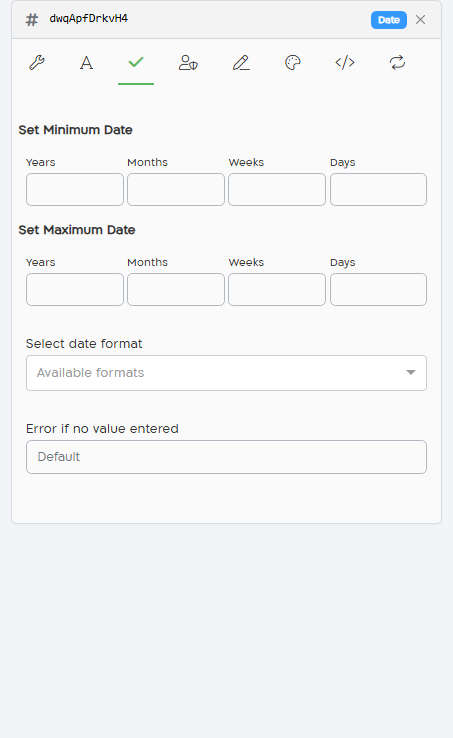
| Setting | What it does |
|---|---|
| Set Minimum Date | The earliest date allowed, relative to today. See Minimum and maximum dates. |
| Set Maximum Date | The latest date allowed, relative to today. |
| Select date format | How the date is written. See Date formats. |
| Error if no value entered | The message shown when a required field is empty, instead of the default message. |
Minimum and maximum dates
Section titled “Minimum and maximum dates”Each limit has four boxes: Years, Months, Weeks and Days. Each number is added to today’s date. Negative numbers are in the past. Leave all the boxes of a limit empty for no limit. When you enter a number in one box of a limit, its empty boxes count as 0.
For example:
- To allow dates from one month ago until tomorrow, enter -1 in Months of Set Minimum Date, and 1 in Days of Set Maximum Date.
- To make sure the client is at least 18 years old, in a birth date field, enter -18 in Years of Set Maximum Date.
The calendar lets the client pick only dates within the limits, and the date is checked again when the form is validated.
Note: after you have entered a limit, clearing all its boxes doesn’t remove it. The limit becomes today’s date.
Date formats
Section titled “Date formats”The formats in Select date format depend on Add time:
| Without Add time | With Add time |
|---|---|
| dd/mm/yyyy: 28/02/2022 | dd/mm/yyyy hh:mm: 28/02/2022 23:35 |
| mm/dd/yyyy: 02/28/2022 | mm/dd/yyyy hh:mm: 02/28/2022 11:35PM |
| dd MMM yyyy: 02 FEB 2022 | dd MMM yyyy hh:mm: 02 FEB 2022 23:35 |
| dd MMM yyyy hh:mm: 02 FEB 2022 11:35AM |
If you don’t select a format, the date is written as dd/mm/yyyy, with a 24-hour time when Add time is on.
Default value
Section titled “Default value”Set the default value on the Conditional Values tab. Enter a date in the field’s format, or $now to use the date (and time, with Add time) when the transaction is created.
In the form
Section titled “In the form”The client picks the date from a calendar. The Today button selects today’s date. With Add time, the client also picks the time.
When the client turns on accessibility in the form, the calendar is not shown, and the client types the date with the keyboard.
Conditions
Section titled “Conditions”In conditions, a Date field supports Greater than (after the date) and Less than (before the date). Compare with a date, or with a date relative to today: a number with y for years, m for months, w for weeks or d for days. For example, Less than -18y is true when the date is more than 18 years before today.