
Automated Dictionaries
תוכן זה אינו זמין עדיין בשפה שלך.
Automated Dictionaries
Section titled “Automated Dictionaries”A regular dictionary is a data list you build yourself — you type the rows in, or you upload them from an Excel, CSV or JSON file, and from then on you own those rows.
An automated dictionary is different: instead of you loading the rows, Cellosign pulls them for you from an external data source on a timer. You point the dictionary at a source (a collection reached through a Tabular data api), tell it which columns become the Text, Value and Group, and how often to refresh — and Cellosign keeps the dictionary in step with that source on its own.
Once the automatic refresh is on, the source is the single source of truth. The rows in the dictionary are written by the refresh and are read-only in the editor; you no longer edit, upload or append rows by hand.
Why use it
Section titled “Why use it”Use an automated dictionary when the list behind a “List of values” control lives in another system and changes over time — a list of banks, branches, price codes, product catalogues, employees, and so on. Instead of exporting from that system and re-uploading the file every time it changes, you connect the dictionary to the source once and let it refresh itself. The form always offers an up-to-date list, with no manual re-upload.
How it differs from a regular dictionary
Section titled “How it differs from a regular dictionary”| Regular dictionary | Automated dictionary | |
|---|---|---|
| Where rows come from | You type them, or upload an Excel / CSV / JSON file | Fetched from an external source through a Tabular Fetch webhook |
| Editing rows | Editable any time (add, edit, delete, Replace, Append) | Read-only while automatic refresh is on |
| Staying current | You re-upload when the data changes | Refreshes itself on a schedule |
| Updating | Replace or Append the whole file | Every refresh replaces all rows with what the source returns |
| Viewing / exporting | Yes | Yes — viewing and CSV/JSON export work exactly the same |
Everything else about the dictionary is unchanged: it still associates with “List of values” controls, still uses the same Text / Value / Group columns, and the same dictionary can still be associated with several templates.
Requirements
Section titled “Requirements”Before you can set up an automated dictionary, the project needs:
- Permission to use the Tabular API (the
tabular_apifeature must be enabled for the company). - At least one active Tabular Fetch webhook defined under Integrations. This webhook is what reads the source data.
If the project has no active Tabular Fetch webhook, the setup screen tells you so:
This project has no active Tabular Fetch webhook. Add one under Integrations first.
Setting it up
Section titled “Setting it up”Open the dictionary you want to automate. On the automatic-refresh card, click Set up automatic refresh to open the Automatic refresh settings dialog.
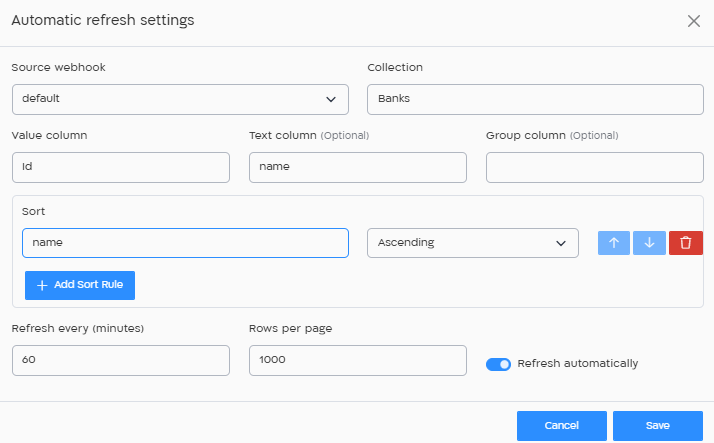
Fill in the settings:
| Field | Description |
|---|---|
| Source webhook | The Tabular Fetch webhook that reads your source. Only active Tabular Fetch webhooks in the project appear here. |
| Collection | The name of the table / collection to read from in the source. |
| Value column | Required. The source column whose value becomes the dictionary Value (what you receive in the archive and JSON). |
| Text column (optional) | The source column that becomes the Text shown to the client. If you leave it empty, the Text is taken from the Value column. |
| Group column (optional) | The source column that becomes the Group (used to link dictionaries together, e.g. cities and streets). |
| Sort | One or more rules — pick a column and Ascending or Descending. Use Add sort rule for more than one; drag to reorder. The source returns the rows in this order. |
| Refresh every (minutes) | How often the refresh runs. Default 60; allowed range 5 to 1440 minutes (5 minutes to 24 hours). |
| Rows per page | How many rows to fetch per page from the source. Default 1000; allowed range 1 to 10000. This only affects how the data is pulled, not the final result. |
| Refresh automatically | The on/off switch for the schedule. Leave it on to have Cellosign refresh on the timer. |
When you click Save, Cellosign first does a quick probe — it reads one page from the source to make sure the webhook, collection and columns actually work:
- If the probe fails (wrong collection, missing columns, source unreachable, no permission), nothing is saved and you see the error — for example “The source did not return these columns: …”. Fix the settings and save again.
- If the probe succeeds, the schedule is saved and the first full refresh runs shortly (on the next scheduled sweep, usually within a minute). Until it finishes, the card shows “Waiting for the first refresh.”
How refreshes work
Section titled “How refreshes work”Once set up, the card shows the current status at a glance:

Reading it left to right: the Automatic refresh switch, the interval (Every 60 min), the result of the last run (Last refresh succeeded with its date and time), how many rows are in the dictionary now (140 rows), how many source rows were dropped (9860 skipped — see below), and when the Next run is due.
A few things to know about how a refresh behaves:
- Every refresh replaces all rows. The dictionary is rebuilt from what the source returns each time — it is never merged or appended. If the source comes back empty, the dictionary is emptied.
- On failure your data is kept. If a refresh fails, the rows that are already there are left untouched, and the card shows Last refresh failed with the reason. Cellosign tries again at the next interval.
- Skipped rows. A row the source returns is skipped (dropped, but not treated as a failure) when it can’t be stored: the Value is empty, the Text / Value / Group is longer than 256 characters, or the Value duplicates one already taken in this refresh. The rest of the rows are saved, and the count of skipped rows is shown next to the row count. Only when every row is rejected does the refresh fail.
The action buttons
Section titled “The action buttons”
| Button | What it does |
|---|---|
| Settings | Reopen the Automatic refresh settings dialog to change the source, columns, sort, interval or page size. |
| Refresh Now | Queue an immediate refresh instead of waiting for the next scheduled run. Available only while automatic refresh is turned on. |
| Disconnect | Remove the schedule entirely. The rows that are there now stay, and the dictionary becomes an ordinary editable dictionary again. |
You can also use the Automatic refresh switch to turn refreshing off without disconnecting. While it is off, refreshes pause and the rows become editable again; turn it back on to resume (and lock editing again).
What you cannot do with an automated dictionary
Section titled “What you cannot do with an automated dictionary”While a dictionary is connected to an automatic refresh and the switch is on:
- You cannot edit rows by hand — the grid is read-only. Adding with the green +, editing cells, and deleting rows are all disabled.
- You cannot Replace, Append or upload a file into it, and the same block applies to the API row-write endpoints — they are rejected.
- Each refresh replaces the rows, so there is no way to merge new source data into your own hand-kept rows. The source owns the content.
Other limits and rules:
- A dictionary cannot be both instant (form-time) and scheduled, and a dictionary backed by a text table cannot also be scheduled — those already own their rows. The settings dialog will tell you if this applies.
- You cannot set up automatic refresh without an active Tabular Fetch webhook and the Tabular API entitlement.
- The interval must be 5–1440 minutes, the page size 1–10000, and a dictionary holds at most 200,000 rows.
- A single refresh has a time budget of a few minutes; a very large or slow source can hit it (“The refresh ran out of time”). If that happens, narrow the collection or increase the page size so fewer pages are needed.
To go back to full manual control — editing, uploading, Replace/Append — turn the switch off or Disconnect the refresh.
Errors and how to handle them
Section titled “Errors and how to handle them”A refresh can fail for a handful of reasons. Each one has a stable error code, and that same code drives both what you see on screen and what is written to the audit log — so a manager reading the log sees the same reason the dictionary screen shows.
A failed refresh never empties the dictionary — the previous rows stay in place — and the schedule keeps trying at its normal interval.
What the screen shows
Section titled “What the screen shows”When the last run failed, the automatic-refresh card shows Last refresh failed (in red) together with a short, human-readable reason mapped from the error code:
| Error code | Message on screen | What it means | What to do |
|---|---|---|---|
not_entitled |
This project is no longer entitled to use the Tabular API | The Tabular API feature is off for the company | Have the Tabular API enabled for the project/company |
webhook_inactive |
The connected webhook is inactive | The source webhook was deactivated | Reactivate the webhook under Integrations, or connect a different one |
webhook_subtype |
The connected webhook is not a Tabular Fetch webhook | The chosen webhook is the wrong type | Choose a Tabular Fetch webhook in Settings |
webhook_class_unknown |
The connected webhook type is not supported | The webhook type can’t be used as a source | Connect a supported Tabular Fetch webhook |
fetch_failed |
Could not fetch rows from the source | The source could not be read | Check the source is reachable and the collection name is correct |
all_rows_invalid |
Every row the source returned was rejected | Every row was skipped (empty, too long, or duplicate values) | Check the Value column mapping and the source data |
write_failed |
Could not write the rows to the dictionary | The rows could not be saved | Retry; if it persists, contact support |
time_budget_exceeded |
The refresh ran out of time | The source was too large/slow for one run | Narrow the collection or raise Rows per page |
schedule_changed |
The schedule was turned off or removed while the refresh was running | The switch was turned off / disconnected mid-run | No action needed — turn it back on if you still want it |
unexpected_error |
Unexpected error | Something else went wrong | Retry, then contact support if it repeats |
If a future version ever reports a code this screen does not recognise, the raw code is shown as-is rather than a friendly message.
Two other places surface problems:
- Setup dialog (before anything is saved). Because saving first probes the source, configuration mistakes are caught immediately in the dialog — for example “The source did not return these columns: …”, “This project has no active Tabular Fetch webhook. Add one under Integrations first.”, or the guards that stop you scheduling an instant or text-table dictionary. Nothing is saved until the probe passes.
- Action toasts. If turning the switch on/off, Refresh Now, or Disconnect cannot reach the server, a red toast appears — “Could not update the refresh schedule” — and the control returns to its previous state.
What is written to the audit log
Section titled “What is written to the audit log”Every refresh and every schedule change is recorded in the project’s Audit log. A few things to know:
- Who can see it. These records are visible to project managers (and company managers / superusers) who have audit-log viewing permission. Regular agents do not see them.
- What it is recorded against. Always the dictionary (not the hidden schedule), so it appears under the dictionary you recognise, in that dictionary’s project.
- Who did it. Manual actions (setting up, changing settings, Refresh Now, Disconnect) record the user who did them. Scheduled refreshes that run on the timer are recorded as a system action with no user.
- No sensitive data. Records never contain row values or source credentials — only counts, reasons, column names and identifiers.
The following events are logged:
| Event | When | Severity | Message |
|---|---|---|---|
| Refresh schedule created | You set up automatic refresh | Message | automatic refresh enabled for dictionary "<name>", every <n> minutes |
| Refresh schedule updated | You change settings or flip the switch | Message | automatic refresh settings changed for dictionary "<name>" (plus , now enabled / , now disabled when the switch flips) |
| Refresh schedule removed | You Disconnect | Message | automatic refresh removed from dictionary "<name>" |
| Automatic refresh succeeded | A run completes successfully | Message | dictionary "<name>" refreshed automatically: <n> rows — or, for Refresh Now, dictionary "<name>" refreshed on request by <user>: <n> rows. , <k> skipped is appended when any rows were skipped |
| Automatic refresh failed | A run fails | Warning | dictionary "<name>" automatic refresh failed: <error_code> |
The failure message deliberately carries the error code (e.g. fetch_failed) so it lines up with what the dictionary screen shows; the longer human-readable reason is kept on the schedule itself.
The details payload
Section titled “The details payload”On every refresh record (created / updated / removed / success / failure) the identity of the schedule is recorded:
| Field | Type | Meaning |
|---|---|---|
schedule_uuid |
string | Id of the refresh schedule |
webhook_uuid |
string | Id of the source (Tabular Fetch) webhook |
collection |
string | The source collection being read |
interval_minutes |
number | The configured refresh interval |
is_enabled |
boolean | Whether the automatic-refresh switch is on |
On a run record (success or failure — i.e. Automatic refresh succeeded / failed) these run fields are added on top:
| Field | Type | Meaning |
|---|---|---|
trigger |
"schedule" or "manual" |
Whether the timer ran it or someone pressed Refresh Now |
duration_ms |
number | How long the attempt took, in milliseconds |
rows_received |
number | How many rows the source returned |
rows_written |
number | How many rows were actually stored in the dictionary (the “N rows” you see) |
rows_skipped |
number | How many received rows were dropped (the “N skipped” you see) |
rows_removed |
number | How many rows the previous version of the dictionary had that are no longer present after this refresh |
skip_reasons |
object | A count per reason, e.g. {"value_missing": 12, "duplicate_value": 3} — keys are the reasons explained above |
skipped_samples |
array | Up to 50 examples of skipped rows, each { "index": <row position>, "reason": <reason>, "column": <column name> }. Never the cell contents |
samples_truncated |
boolean | true when more than 50 rows were skipped, so the sample list above was capped |
pages_fetched |
number | How many pages were pulled from the source for this run |
termination_reason |
string | Why paging stopped — e.g. the source signalled no more rows, an empty page, or a limit was hit (max pages / max rows / time) |
request_id |
string | The source request identifier, for correlating with webhook/source logs |
On a failure record only, one more field is added:
| Field | Type | Meaning |
|---|---|---|
error_code |
string | The stable code from the error table above (fetch_failed, not_entitled, …) |
So for a failed refresh a manager can open the audit log, see the warning-level entry with its code, and read the details — counts, skip reasons, timing and the request id — to tell an entitlement problem from a source outage from a data problem, without ever exposing the data itself.
Allowed characters in the data
Section titled “Allowed characters in the data”Regular dictionaries restrict which characters a Text or Value may contain. For security reasons the following are disallowed:
- Text column:
<,>,; - Value and Group columns:
<,>,#,$,%,^,&,*,|,;,:,{,},[,],=,+,-
When you type or upload rows yourself, these rules are enforced: a cell containing a disallowed character is rejected with a message such as "…" contains unexpected character "…", and the save (or file import) does not go through until you fix it.
An automatic refresh behaves differently. Rows fetched from the source are written straight into the dictionary, and this write path does not re-check the character rules — it only drops a row when its Value is empty, when the Text / Value / Group is longer than 256 characters, or when the Value duplicates one already taken in the same refresh (these are the skipped rows). A disallowed character in a source value will therefore not stop the refresh or skip the row — the value is stored as-is.
Because of this, make sure the data in your source is already clean. If the source can contain characters that are not valid for a dictionary, filter or transform them at the source (or in the webhook), since the refresh will not do it for you.
Notes and Gotchas
Section titled “Notes and Gotchas”- Values removed by a refresh are not carried forward in a workflow. A “List of values” control only accepts a value that exists in its dictionary at the moment the form loads. In a workflow, if one recipient submits a form with a value that a later refresh then removes from the source, that value no longer exists in the dictionary when the form reaches the next recipient — so it is not propagated into the form for them. Keep this in mind when a workflow spans more than one refresh interval: a value that was valid for an earlier step can disappear before a later step opens. If a selection must survive the whole workflow, avoid refreshing that dictionary mid-process, or store the chosen value in a field that is not tied to the dictionary.
- Rows whose Text / Value / Group are too long (over 256 characters) are skipped rather than saved.
- Managers can see each refresh (success or failure) in the project’s Audit log, including the row and skipped counts and the reason for a failure. Row contents and source credentials are never written to the log.
- Turning the switch off pauses refreshing but keeps the schedule; Disconnect removes it. Both leave the current rows in place and make the dictionary editable again.