
Text fields
תוכן זה אינו זמין עדיין בשפה שלך.
Text fields collect a value that the client types: Text, Text Area, Number, Email, Telephone and ID Number.
A new text field is Required, and both the client and the agent can edit it. The settings that all fields share, such as the label, the permissions, the dependencies and the default value, are described in Field settings. This page describes the settings that are specific to each type.
Settings shared by text fields
Section titled “Settings shared by text fields”| Setting | Tab | Types | What it does |
|---|---|---|---|
| Show clear buttons | Values & Display | All text fields | Shows an X button that empties the field. The button appears while the client edits a field that has a value, and only to viewers who can edit the field. |
| Error Message Invalid | Validation | All except Telephone | The message shown when the value is not valid, instead of the default message. |
| Error if no value entered | Validation | All | The message shown when a required field is empty, instead of the default message. |
| Regex Validation | Validation | Text, Text Area, Number, ID Number | A regular expression that the value must match. See below. |
| Field’s value Must be and To Value in This Field | Validation | Text, Number, Email, ID Number | Compares the value with another field of the same type. See below. |
Regex Validation
Section titled “Regex Validation”Write the regular expression in JavaScript syntax, between slashes, with optional flags after the last slash. For example:
- an IP address:
/\b\d{1,3}\.\d{1,3}\.\d{1,3}\.\d{1,3}\b/g, for example 192.34.123.1; - an amount with up to two decimals:
/^[0-9]*(\.[0-9][0-9])?$/g, for example 12 or 1.35.
Test the expression before you use it in production.
New Text and Text Area fields start with the project’s default regex, if one is set. See Project security.
Compare with another field
Section titled “Compare with another field”Use Field’s value Must be to check the value against the value of another field of the same type, for example to make the client type an email address twice:
- Add two Email fields.
- In the second field, open the Validation tab.
- In Field’s value Must be, select Equal.
- In To Value in This Field, select the first Email field.
Text, Email and ID Number fields can be compared with Equal or Not Equal. Number fields can also use Greater than, Greater than or equal, Lower than and Lower than or equal.
For Text and Email fields, Ignore Case ignores the difference between upper and lower case. It is turned on when you select the other field.
If the other field is empty, the field shows an error. If the comparison must always run, make the other field required.
A single line of text. Available in HTML and PDF templates.
On the Validation tab:
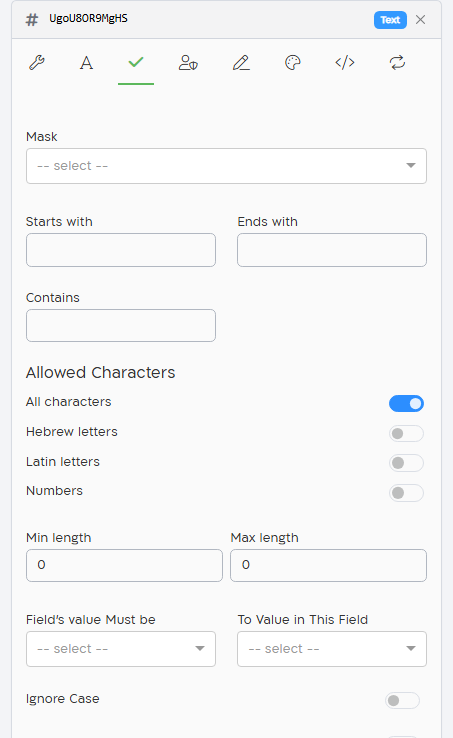
| Setting | What it does |
|---|---|
| Mask | A fixed format for the value. See Masks. When a mask is selected, Starts with, Ends with, Contains, Allowed Characters, Min length and Max length are hidden and not applied. |
| Starts with, Ends with, Contains | The value must start with, end with or contain this text. The check is case-sensitive. |
| Allowed Characters | All characters (the default), or any combination of Hebrew letters, Latin letters and Numbers. See below. |
| Min length, Max length | The minimum and maximum number of characters, from 0 to 100. 0 means no limit. |
| Field’s value Must be, To Value in This Field, Ignore Case | Compare the value with another Text field. See Compare with another field. |
| Validate bank account number | Shown when bank account validation is part of your plan and you have permission to use it. Checks the bank account number in this field together with the Bank code and the Branch code. Select the fields that hold them: Text, Number or List Of Values fields. |
| Error Message Invalid, Error if no value entered | Custom error messages. |
| Regex Validation | A regular expression that the value must match. See Regex Validation. |
Mask and Regex Validation can’t be used together. Selecting a mask clears the regex, and entering a regex clears the mask.
Allowed characters
Section titled “Allowed characters”Turning on Hebrew letters, Latin letters or Numbers turns off All characters. Turning them all off turns All characters back on.
- With Numbers only, the client can type digits only.
- With Hebrew letters or Latin letters, the client can also type spaces, apostrophes (’), quotation marks (“), underscores (_) and hyphens (-).
The client can’t type or paste characters that are not allowed.
Use Allowed Characters or Regex Validation, not both. When specific characters are allowed, the form checks the allowed characters instead of the regex.
The client types the value in the mask’s format. In the formats, each 9, 0 or # stands for a digit. A masked field is always written left to right.
| Mask | Format |
|---|---|
| Credit card | 9999-9999-9999-9999 |
| Car plate number | 99-999-99 |
| IP Address | 099.099.099.099 |
| Percent | ##0.00% |
| Full percent | ##0% |
| Currency | ###,###,##0.00 |
| Integer with commas (thousands) | Whole numbers with a comma between thousands, for example 1,250,000 |
| SSN | 999-99-9999 |
| hh:mm | A time, for example 09:30. The mask sets the format only; it doesn’t check that the time exists. |
In conditions, a Text field supports Empty, Not Empty, Equal and Contains.
Text Area
Section titled “Text Area”Several lines of text. Available in HTML templates only.
On the Validation tab:
| Setting | What it does |
|---|---|
| Min length, Max length | The minimum and maximum number of characters, from 0 to 100. 0 means no limit. |
| Error Message Invalid, Error if no value entered | Custom error messages. |
| Regex Validation | A regular expression that the value must match. See Regex Validation. |
The default value of a Text Area can have several lines.
In conditions, a Text Area supports Empty, Not Empty, Equal and Contains.
Number
Section titled “Number”A number. Available in HTML and PDF templates. The client can type digits and a decimal point only.
On the Values & Display tab:
| Setting | What it does |
|---|---|
| Show counter buttons | Shows + and − buttons next to the field. Each click adds or subtracts the Step size. When counter buttons are shown, the clear button is not. |
| Step size | Shown with Show counter buttons. How much each click adds or subtracts. The default is 1. |
On the Validation tab:
| Setting | What it does |
|---|---|
| Built-in Types | Select Israeli ID to turn the field into an ID Number field. |
| Minimum, Maximum | The lowest and highest value allowed. 0 means no limit. |
| Field’s value Must be, To Value in This Field | Compare the value with another Number field. The values are compared as numbers. See Compare with another field. |
| Error Message Invalid, Error if no value entered | Custom error messages. |
| Regex Validation | A regular expression that the value must match. See Regex Validation. |
In conditions, a Number field supports Greater than, Less than, Equal, Not Equal, Empty and Not Empty.
One email address. Available in HTML and PDF templates.
On the Values & Display tab, turn on Client copy to send the client email with the signed document to the address in this field when the form is completed.
On the Validation tab:
| Setting | What it does |
|---|---|
| Field’s value Must be, To Value in This Field, Ignore Case | Compare the value with another Email field. See Compare with another field. |
| Error Message Invalid, Error if no value entered | Custom error messages. |
The address must have an “@” and a dot after it, with no spaces or commas, and up to 150 characters. Only one address is allowed. Any domain is accepted.
To accept only some domains, use a Text field with Regex Validation instead. For example, /^[a-zA-Z0-9._%+-]+@[a-zA-Z0-9.-]+\.(com|net)$/ accepts only addresses that end with “.com” or “.net”. A Text field has no Client copy.
In conditions, an Email field supports Empty, Not Empty, Equal and Contains.
Telephone
Section titled “Telephone”A phone number. Available in HTML templates only.
On the Validation tab, choose which numbers are accepted:
| Mobile | Fixed | Accepted numbers |
|---|---|---|
| On | On | Mobile, fixed-line and VoIP numbers (the default) |
| On | Off | Mobile numbers only |
| Off | On | Fixed-line and VoIP numbers only |
The number is checked by the phone numbering rules of Israel. A number in international format, starting with “+”, is checked by the rules of its country.
The Telephone field has no Error Message Invalid. You can set Error if no value entered.
In conditions, a Telephone field supports Empty, Not Empty, Equal and Contains.
ID Number
Section titled “ID Number”An Israeli ID number. Available in HTML templates only.
An ID Number field is a Number field whose Built-in Types is Israeli ID. The value must have exactly 9 digits, and its last digit must be a valid check digit.
On the Validation tab:
| Setting | What it does |
|---|---|
| Built-in Types | Israeli ID. If you clear it, the field becomes a regular Number field. |
| Field’s value Must be, To Value in This Field | Compare the value with another number field, with Equal or Not Equal. See Compare with another field. |
| Error Message Invalid, Error if no value entered | Custom error messages. |
| Regex Validation | Entering a regex clears Built-in Types, and the field becomes a regular Number field. |
An ID Number field has no counter buttons.
In conditions, an ID Number field supports Equal and Not Equal.