
Integrations
תוכן זה אינו זמין עדיין בשפה שלך.
The Integrations tab connects the template to people outside Cellosign and to your systems. To open it, click the Integrations tab (the diagram icon) in the template editor.
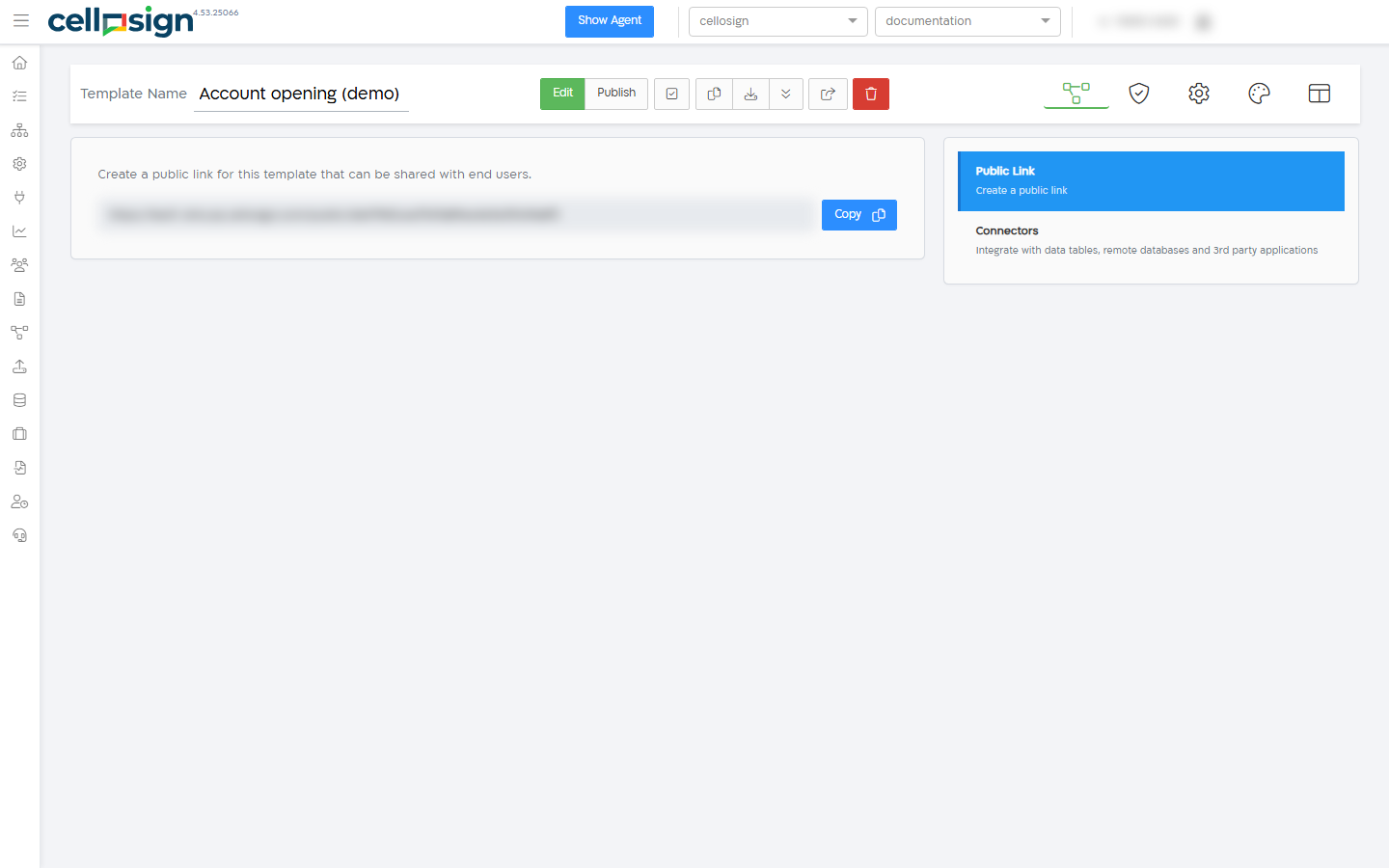
Select a section on the right of the tab:
| Section | What it’s for |
|---|---|
| Public Link | A link that anyone can open to start a new transaction of the template, for example from your website. This section opens first. |
| Connectors | Connects the form to data tables, webhooks, Salesforce, file storage and Google Maps, at different stages of the transaction. |
The settings are saved with the template. Click Save in the editor header to keep your changes.
Connector kinds
Section titled “Connector kinds”| Source | What it does | Page |
|---|---|---|
| Data Table | Looks up a row in a project data table and fills form fields with its values. | Data Table connector |
| Webhook | Links one of the project’s webhooks to the template, and can send field values to a remote service and fill fields from its answer. | Webhook connector |
| Salesforce | Reads, creates, updates and deletes Salesforce records, and uploads files to them. | Salesforce connector |
| File Storage | Saves the files of the submitted form to one of the project’s storage integrations. | Connectors |
| Maps | Turns on Google Maps in the form’s Location fields. | Maps connector |
The integrations themselves are set up in the project. See Integrations and Data tables.