
Import a workflow
תוכן זה אינו זמין עדיין בשפה שלך.
Import a workflow to copy it from one project or server to another, for example from a test server to the production server. First download the workflow from the workflow editor on the source system, and then import the file on the target system.
You can import two kinds of files:
| File | How to get it | What it contains |
|---|---|---|
.json |
Click JSON in the workflow editor. | The workflow diagram and its settings only. |
.cellosign |
Click Backup in the workflow editor. | The workflow together with the objects it uses, such as templates and dictionaries. Available only when process backup is included in your organization’s plan. |
Import a file
Section titled “Import a file”-
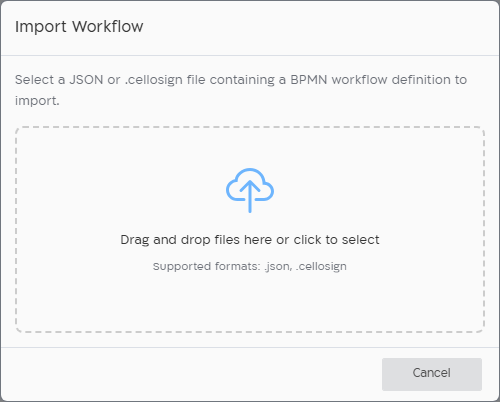
In the workflows list, click Import Workflow.
-
Select the file.
-
A
.jsonfile is imported as soon as you select it. -
For a
.cellosignfile, choose how to handle objects that already exist in the project, and click Upload:Option What happens Use existing objects Objects that already exist in the project are kept as they are. Only missing objects are created. Override existing objects Objects that already exist in the project are replaced by the versions in the file. Restoring a
.cellosignfile can take a while. Keep the dialog open until it finishes.
-
-
When the import is done, the workflow opens in the editor.
After importing, check the elements that refer to objects on the source system, such as templates, senders, integrations and secrets, and save the workflow.