
Basic
תוכן זה אינו זמין עדיין בשפה שלך.
HTML and Hybrid template
Section titled “HTML and Hybrid template”
| Show form before submission | When selected will allow the end user to view the details of the form in final PDF format before submission. Use this option if there is a legal obligation to show the client the form (usually statutory) before sending. Default: Unselected |
| Post form button text | Allows to enter different text for the submit button in the form. ** Default: Submit Form |
| Next page button text | Allows to enter different text for the next button in the form. ** Default: Next |
| Previous page button text | Allows to enter different text for the previous button in the form. ** Default: Prev |
| Select or enter new tag | Allows to select an existing tag or enter a new tag. Entering tags in this field will display the tags in the “Templates” screen. So that it will be possible to search by tag and to view all templates with the same [one or more] tags. |
| Categories | Allows to associate a template with an existing category. For more information see “Categories” section. |
** We strongly advise to keep the texts short as possible since on some cases: small resolution phone and long text, button size can exceed the mobile width.If you choose to change the defaults make sure to test before moving from top production.
PDF template
Section titled “PDF template”
| Post signed PDF to client | When selected will allow the end user to enter a valid email address in order to receive a signed copy of the document. Default: Unselected |
| Mandatory | Appears when “Post signed PDF to client” checkbox is selected. When selected will require the end user to enter an email address in order to send the form. Default: Unselected |
| Select or enter new tag | Allows to select an existing tag or enter a new tag. Entering tags in this field will display the tags in the “Templates” screen. So that it will be possible to search by tag and to view all templates with the same [one or more] tags. |
| Categories | Allows to associate a template with an existing category. For more information see “Categories” section. |
See below an example of selected “Post signed PDF to client” field in the form:

Client forms configuration
Section titled “Client forms configuration”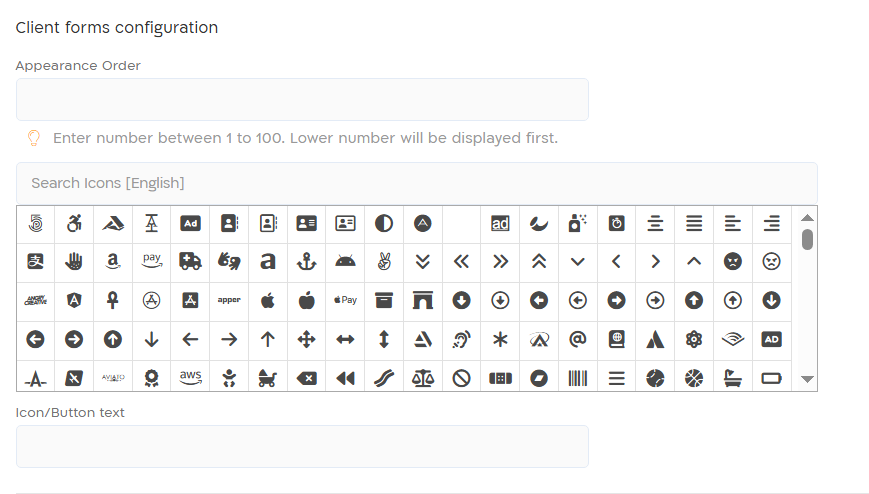
| Option | Description |
|---|---|
| Appearance Order | Set order of transaction appearance in client forms. Inputr accept number between 1 to 100. The lower the number is it will be displayed higher in the list of transactions. |
| Icon | Set Icon for button that opens the transaction |
| Icon/Button text | Set text to button that opens the transaction |